

Authentication & Setup
Microsoft 365 integration uses OAuth 2.0 authentication through Azure AD App Registration. Organizations must create an Azure AD application in the Azure portal and configure the appropriate API permissions. Required credentials include Client ID (Application ID), Client Secret (Application Secret), and Tenant ID (Directory ID). This ensures secure, delegated access to user resources while respecting organizational security policies.Required Permissions
- Mail.ReadWrite: Full access to read, compose, send, and delete emails in user mailboxes.
- Mail.Send: Send emails on behalf of the user without full mailbox access.
- Calendars.ReadWrite: Create, read, update, and delete calendar events and meetings.
- Files.ReadWrite.All: Full access to OneDrive and SharePoint files and folders.
- User.Read: Read basic user profile information.
- Contacts.ReadWrite: Manage user contacts and contact lists.
Available Operations
With all required permissions configured, the toolkit enables the following operations:Email Operations
- Search Emails: Query mailbox using keywords, sender, date range, and folder filters. Supports advanced search operators.
- Send Email: Compose and send emails with attachments, CC/BCC recipients, and HTML formatting.
- Reply to Email: Reply or reply-all to existing email threads maintaining conversation context.
- Forward Email: Forward messages to other recipients with optional comments.
- Get Email Content: Retrieve full email body, headers, and attachment metadata.
- Move Email: Organize emails by moving them between folders (Inbox, Archive, Custom folders).
- Create Draft: Save emails as drafts for later review and sending.
- Download Attachment: Extract and save email attachments to agent workspace.
- Mark as Read/Unread: Update email status flags.
- Delete Email: Move emails to Deleted Items or permanently delete.
Calendar Operations
- List Events: Query calendar events by date range, attendees, or keywords.
- Create Event: Schedule meetings with title, date/time, location, attendees, and body.
- Update Event: Modify existing calendar events including rescheduling.
- Cancel Event: Delete meetings and send cancellation notices to attendees.
- Find Free Slots: Check availability across multiple calendars for meeting scheduling.
- Get Attendee Status: View RSVP responses (Accepted, Tentative, Declined).
- Add Attendees: Invite additional participants to existing meetings.
- Set Reminder: Configure notification alerts for events.
OneDrive & SharePoint Operations
- List Files: Browse files and folders in OneDrive or SharePoint document libraries.
- Upload File: Upload documents from agent workspace to cloud storage.
- Download File: Retrieve files for processing or analysis.
- Search Files: Find files by name, content, or metadata across OneDrive/SharePoint.
- Create Folder: Organize files with new folder structures.
- Share File: Generate sharing links with view/edit permissions and expiration dates.
- Move File: Relocate files between folders or sites.
- Delete File: Remove files and folders from storage.
- Get File Metadata: Retrieve creation date, modified date, size, and author information.
Contacts Operations:
- **List Contacts: Browse user contacts and contact lists.
- **Create Contact: Add new contacts with name, email, phone, and other details.
- **Update Contact: Modify existing contact information.
- **Delete Contact: Remove contacts from contact lists.
- **Search Contacts: Find contacts by name, email, or other fields.
Configuration Options
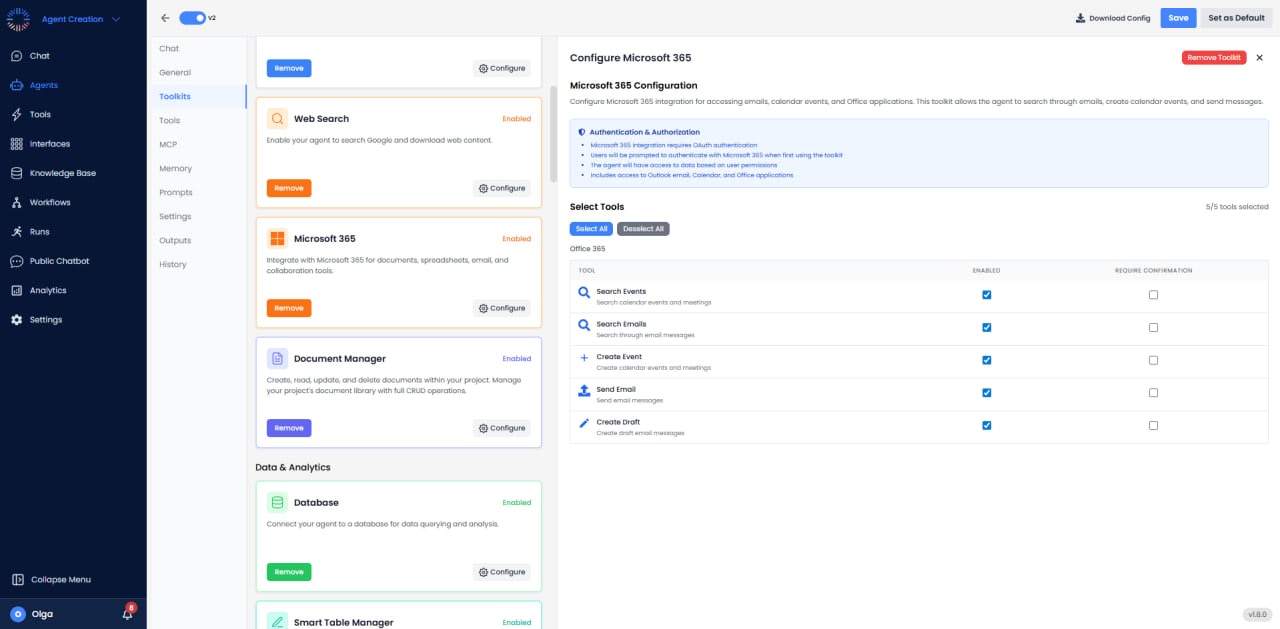
- Default Mailbox: Specify which mailbox to access (user’s primary or shared mailbox).
- Folder Scope: Limit access to specific folders (e.g., only Inbox and Sent Items).
- Calendar Scope: Choose which calendars to access (primary, shared, or resource calendars).
- File Location: Set default OneDrive folder or SharePoint site for file operations.
- Attachment Handling: Configure automatic virus scanning and size limits for attachments.
- Time Zone: Set time zone for calendar operations to ensure correct scheduling.
Use Cases
- Automated Meeting Scheduling: Agent reads email requests, checks calendar availability, proposes times, and books meetings automatically.
- Email Triage: Automatically categorize and route incoming emails based on content, urgency, and sender.
- Report Distribution: Generate reports using other toolkits, upload to OneDrive, and email links to stakeholders.
- Meeting Preparation: Extract agenda items from emails, find related documents in SharePoint, and prepare meeting materials.
- Follow-up Automation: Track action items from meetings and send reminder emails to participants.
- Document Collaboration: Upload drafts to SharePoint, share with team, collect feedback via email.
- Calendar Management: Coordinate multi-party meetings by checking availability and finding optimal time slots.
Best Practices
- Use Service Accounts: For shared scenarios, use dedicated service accounts rather than personal accounts.
- Implement Rate Limiting: Microsoft Graph API has throttling limits; implement exponential backoff for retries.
- Batch Operations: Use batch requests to perform multiple operations in a single API call for better performance.
- Monitor Quota: Track API usage to avoid hitting Microsoft’s daily limits.
- Security Scanning: Always scan attachments and uploaded files for malware before processing.
Common Issues & Solutions
- Authentication Failures: Verify Azure AD app permissions are granted admin consent. Check token expiration.
- Insufficient Permissions: Ensure all required API permissions are granted in Azure portal.
- Calendar Conflicts: Use Find Free Slots tool before creating events to avoid double-booking.
- Attachment Size Limits: Large files should be uploaded to OneDrive first, then linked in emails.