
Team-Level RBAC
Odin AI Platform supports Team-level Role-Based Access Control (RBAC), which defines what users can access and manage across the Odin AI Platform platform as a whole, independent of any individual project. These permissions govern platform-wide capabilities such as creating and managing projects, administering users, configuring team settings, and viewing usage and audit data. Unlike project-level RBAC, team-level roles are fixed and standardized. Odin AI Platform provides three default team-level roles—Admin, Editor, and Member—and does not support Custom Roles at this level. This approach ensures consistent governance, predictable behavior, and strong security controls across the organization. Team-level RBAC determines:- Whether a user can create, edit, or delete projects
- Access to team-wide settings and configurations
- The ability to add, modify, or remove team members
- Visibility into usage metrics, credit consumption, and audit logs
- Access to advanced features such as Agent Mode, depending on team settings
Team-Level Roles and Permissions
When adding a user to a Team in Odin AI Platform, you must assign one of the available team-level roles. These roles control a user’s platform-wide permissions and do not define what the user can do within individual projects.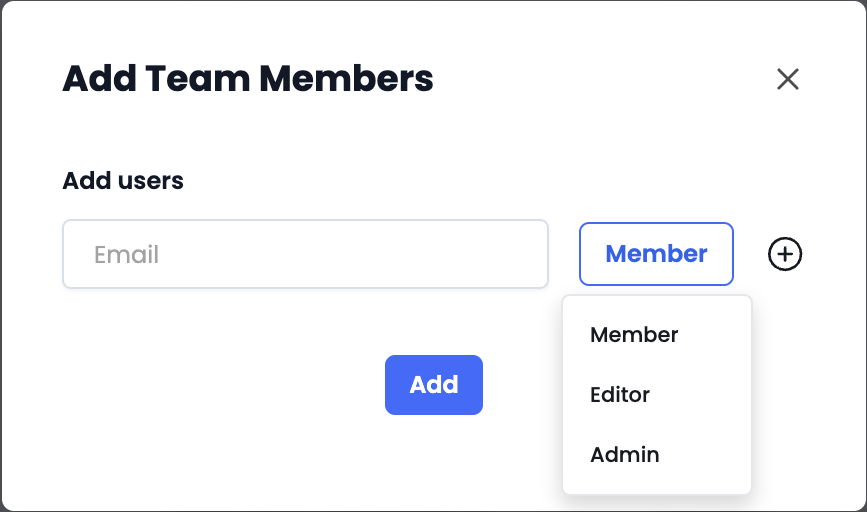
Member
The Member role is intended for standard users who primarily work within projects and do not manage the team or platform configuration. Members can:- Access and work in projects they have been added to, based on their assigned project-level role
- Create new projects if the team setting “Members Can Create Projects” is enabled
- Access Agent Mode if the team setting “Chat Mode for Members” is enabled
- Manage team settings
- Add, remove, or modify other team members
- View team-wide analytics, logs, or usage data
Editor
The Editor role is designed for power users who need broader control over projects but do not require full administrative access at the team level. Editors can:- Access, edit, and delete projects, subject to their project-level role
- Create new projects
- Access Agent Mode
- Perform all actions available to Members
- Manage team-wide settings
- Add or remove team members
- Access team-level usage analytics or logs
Admin
The Admin role provides full control over the Team and is intended for platform owners and administrators. Admins can:- Perform all actions available to Editors and Members
- Manage Team Settings
- Add, modify, and remove team members
- View all projects and monitor credit and token usage
- Manage Tags used for users and Knowledge Base documents
- Configure Agent Mode settings
- Access usage analytics, audit logs, and team activity logs
Best Practices for Team-Level RBAC
- Limit Admin access: Assign the Admin role only to users who require full team oversight.
- Use project-level roles for granularity: Rely on project-level RBAC to control detailed access within projects.
- Align roles with responsibilities: Choose team-level roles based on platform governance needs, not job titles.
- Review access regularly: Periodically audit team roles to ensure permissions remain appropriate as responsibilities evolve.