

Authentication & Setup
Dropbox integration uses OAuth 2.0 authentication with Scoped Access approach. Organizations must create a Dropbox App in the Dropbox App Console and configure appropriate permissions. The integration supports both personal Dropbox accounts and Dropbox Business team accounts. Agents can access files in user’s Dropbox or shared team folders with proper authorization.Required Permissions & Scopes
- files.content.write: Upload and modify file content.
- files.content.read: Download and read file content.
- files.metadata.write: Create folders, move, rename, and delete files.
- files.metadata.read: View file and folder metadata.
- sharing.write: Create and modify sharing links.
- sharing.read: View existing sharing settings.
- team_data.member: Access team folder content (Dropbox Business).
Available Operations
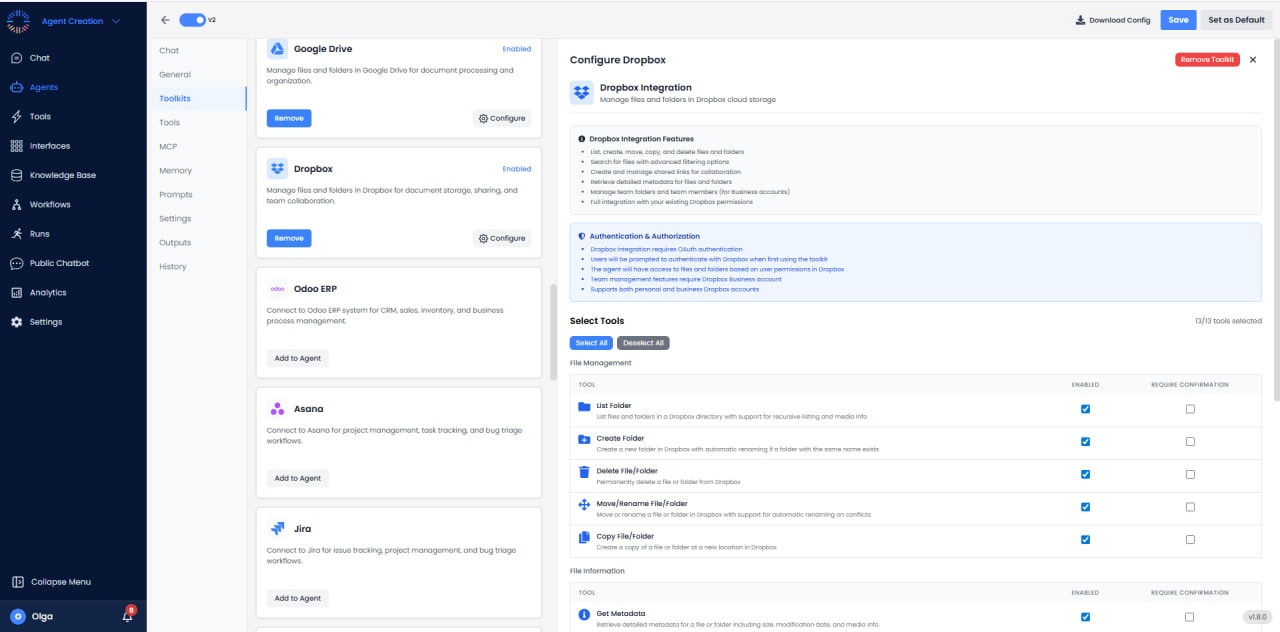
With all required permissions configured, the toolkit enables the following operations:File Operations
- Upload File: Upload files from agent workspace to Dropbox with automatic versioning.
- Download File: Retrieve files for local processing with support for partial downloads.
- Move File: Relocate files between folders with automatic conflict resolution.
- Copy File: Duplicate files to the same or different location.
- Delete File: Remove files (can be recovered from deleted files for 30 days).
- Restore File: Recover deleted files or restore previous versions.
- Get File Metadata: Retrieve file details including size, modified date, content hash.
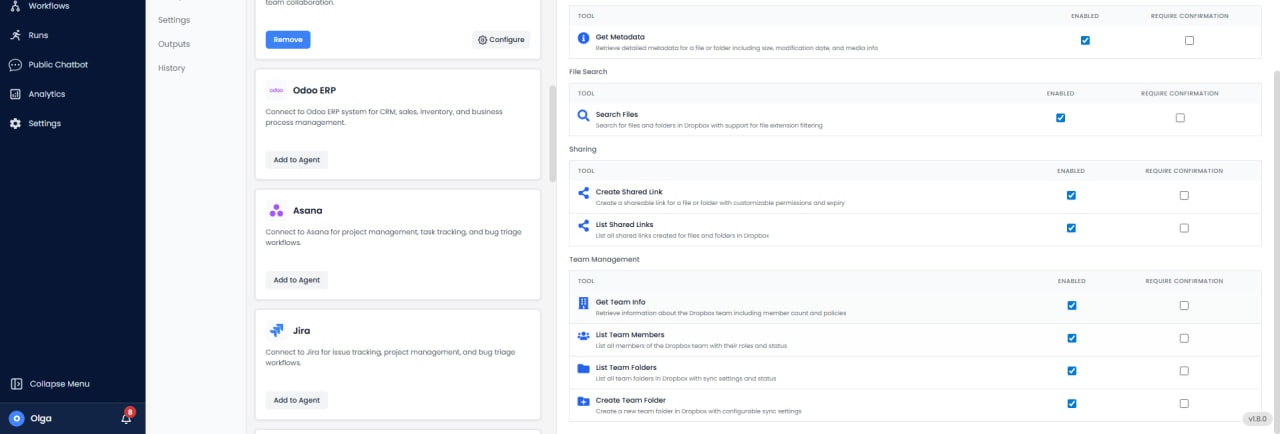
- Search Files: Full-text search across filenames and content (where supported).
- Get Thumbnail: Generate preview thumbnails for images and documents.
Folder Management
- Create Folder: Create new folders with nested hierarchies.
- List Folder: Browse folder contents with pagination support.
- Move Folder: Relocate entire folder structures.
- Copy Folder: Duplicate folders with all contents.
- Delete Folder: Remove folders and all contents.
- Get Folder Metadata: Retrieve folder properties and statistics.
Sharing Operations
- Create Shared Link: Generate public or password-protected sharing links.
- List Shared Links: View all active sharing links for files and folders.
- Revoke Shared Link: Deactivate sharing links to prevent further access.
- Update Link Settings: Modify link permissions and expiration dates.
- Create Shared Folder: Share folders with specific users or teams.
- Add Folder Member: Invite users to collaborate on shared folders.
- Remove Folder Member: Revoke access for shared folder collaborators.
- Set Link Expiration: Configure automatic link expiration dates.
- Set Link Password: Protect links with password authentication.
Advanced Operations
- Get File Revisions: Access version history for files (up to 30 days or longer with extended history).
- Batch Operations: Perform multiple file operations in a single API call.
- Upload Session: Upload large files (>150MB) using chunked upload sessions.
- Download Zip: Download multiple files as a compressed archive.
- Get Space Usage: Check account storage usage and available space.
- Paper Doc Operations: Create and edit Dropbox Paper documents.
Dropbox Business Features
- Team Folder Access: Access and manage team folders.
- Member Management: List team members and their permissions.
- Admin Operations: Perform administrative tasks (requires admin permissions).
Configuration Options
- Default Folder: Set default upload location in Dropbox.
- Conflict Resolution: Choose behavior for filename conflicts (autorename, overwrite, fail).
- Chunk Size: Configure upload chunk size for large files (default 4MB).
- Link Permissions: Default permissions for sharing links (view only, edit).
- Auto Delete: Automatically delete local files after successful upload.
Use Cases
- File Storage: Backup important documents and data from agent workspace to cloud.
- Backup Automation: Schedule automatic backups of critical files to Dropbox.
- File Sharing: Generate sharing links for reports, documents, or datasets for stakeholder access.
- Collaborative Workflows: Upload files to shared team folders for collaboration.
- Document Distribution: Distribute generated reports to multiple recipients via shared links.
- Data Migration: Transfer files between storage systems using Dropbox as intermediary.
- Version Control: Leverage Dropbox’s automatic versioning for document management.
- Media Library: Store and organize images, videos, and media assets.
Best Practices
- Use Path Identifiers: Reference files by path (case-insensitive) for stability.
- Chunked Uploads: Always use upload sessions for files larger than 150MB.
- Batch Requests: Group multiple operations to reduce API calls (up to 1,000 operations per batch).
- Monitor Rate Limits: Dropbox enforces rate limits; implement exponential backoff for retries.
- Link Expiration: Set expiration dates on sharing links for sensitive content.
- Organize Folders: Use clear folder hierarchies to keep files organized.
- Check Space: Verify available storage before large uploads to avoid failures.
Rate Limits & Quotas
Dropbox API enforces rate limiting based on app type and account tier. Standard limits: 40 requests/second for individual users. Batch operations count as a single request. Monitor HTTP 429 responses and implement retry logic with exponential backoff (suggested: 1s, 2s, 4s, 8s).Common Issues & Solutions
- Path Not Found: Verify path spelling and case (Dropbox paths are case-insensitive but case-preserving).
- Insufficient Space: Check account storage before uploads. Upgrade plan if needed.
- Rate Limit Exceeded: Implement exponential backoff and consider using batch operations.
- Upload Timeout: Use chunked upload sessions for large files to handle network interruptions.
- Permission Denied: Verify OAuth scopes include necessary permissions for the operation.