

Authentication & Setup
Gmail integration requires OAuth 2.0 authentication through Google Cloud Platform. Organizations must create a project in Google Cloud Console, enable the Gmail API, and configure OAuth consent screen. The integration supports both personal Gmail accounts and Google Workspace (formerly G Suite) enterprise accounts. Authentication tokens are securely stored and automatically refreshed to maintain continuous access.Required API Scopes
- gmail.readonly: Read-only access to emails and settings.
- gmail.send: Send emails on behalf of the user.
- gmail.compose: Create and manage draft emails.
- gmail.modify: Full access to read, compose, send, and modify emails.
- gmail.labels: Manage email labels and categories.
Available Operations
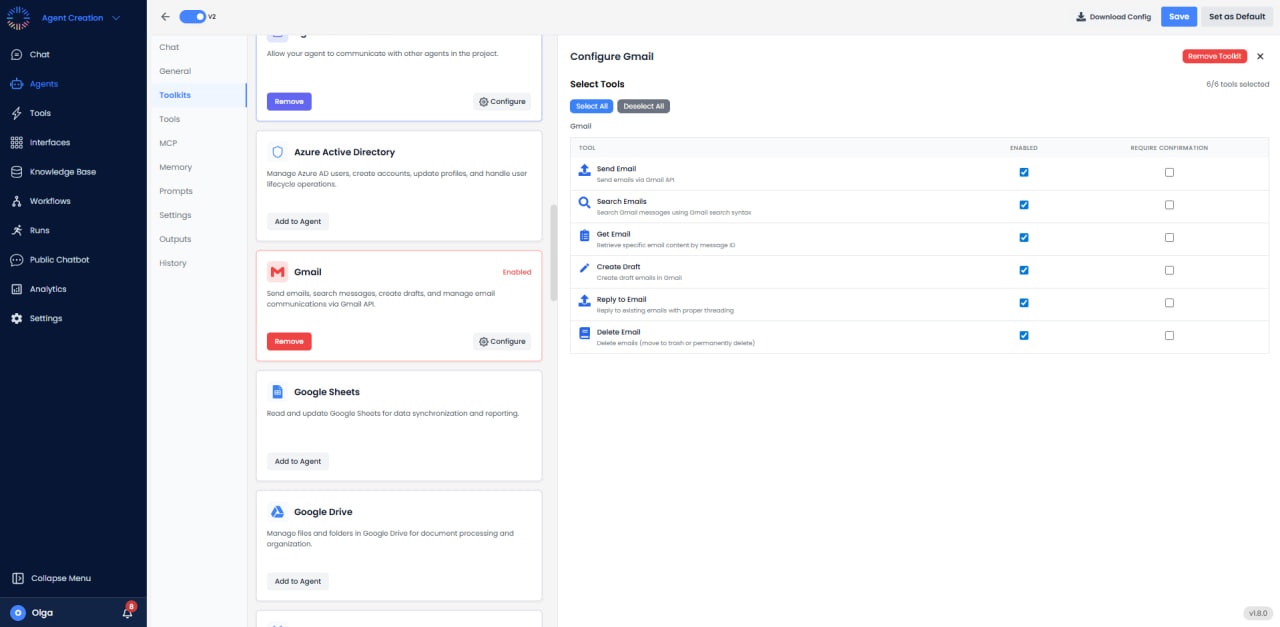
With all required permissions configured, the toolkit enables the following operations:Email Management
- Search Emails: Advanced search using Gmail query syntax (from:, to:, subject:, has:attachment, is:unread, etc.).
- Get Email Content: Retrieve full email with headers, body (plain text/HTML), and attachment list.
- Send Email: Compose and send new emails with multiple recipients, CC/BCC, attachments, and HTML content.
- Reply to Email: Reply to existing threads maintaining conversation history and threading.
- Forward Email: Forward messages to other recipients with optional additional comments.
- Get Attachments: Download email attachments for processing or storage.
- Delete Email: Move emails to trash or permanently delete from trash.
- Archive Email: Remove from inbox while keeping in All Mail.
- Mark as Spam: Report and move unwanted emails to the spam folder.
- Mark as Important/Starred: Flag important emails for easy retrieval.
Draft Management
- Create Draft: Save email compositions as drafts without sending.
- Update Draft: Modify existing draft content, recipients, or attachments.
- Send Draft: Send a previously created draft email.
- List Drafts: View all saved draft emails.
- Delete Draft: Remove draft emails from the drafts folder.
Label Operations
- List Labels: Get all available labels including system and custom labels.
- Create Label: Create custom labels for email organization.
- Apply Label: Add one or multiple labels to emails.
- Remove Label: Remove labels from emails.
- Rename Label: Change label names for better organization.
- Delete Label: Remove custom labels (emails remain intact).
Thread Operations
- Get Thread: Retrieve the entire conversation thread with all messages.
- List Threads: Query conversation threads based on search criteria.
- Modify Thread: Apply bulk operations to all emails in a thread.
Status Management
- Mark as Read: Update read status for single or multiple emails.
- Mark as Unread: Flag emails as unread for later attention.
- Trash Email: Move emails to the trash folder.
- Untrash Email: Restore emails from trash to inbox.
Configuration Options
- Query Filters: Set default filters for searches (e.g., only search last 30 days).
- Max Results: Configure maximum number of emails to retrieve per query (default 50, max 500).
- Include Spam/Trash: Whether to include spam and trash folders in searches.
- Attachment Handling: Set size limits and virus scanning for downloaded attachments.
- Default Labels: Automatically apply labels to emails sent by the agent.
- Thread Mode: Enable/disable automatic thread grouping for replies.
Use Cases
- Intelligent Inbox Management: Automatically categorize, label, and prioritize incoming emails based on content analysis.
- Lead Extraction: Scan emails for contact information, extract leads, and populate CRM systems.
- Automated Replies: Generate contextual responses to common inquiries using KB knowledge.
- Email Monitoring: Watch for specific keywords or senders and trigger workflows or notifications.
- Newsletter Management: Automatically file, summarize, or unsubscribe from promotional emails.
- Customer Support: Route support emails to appropriate teams based on content classification.
- Expense Tracking: Extract receipts from emails, process attachments, and log to accounting systems.
- Meeting Coordination: Parse meeting invitation emails and sync with calendar systems.
Best Practices
- Use Gmail Query Syntax: Leverage advanced search operators for precise email filtering.
- Batch Operations: Process multiple emails in single operations to reduce API calls.
- Respect API Quotas: Gmail API has daily quota limits (1 billion quota units/day for Google Workspace).
- Implement Exponential Backoff: Handle rate limiting gracefully with retry logic.
- Thread-Safe Replies: Always use thread IDs when replying to maintain conversation context.
- Label Organization: Create a clear label hierarchy for automated classification.
API Quota Considerations
Gmail API uses a quota system where different operations cost different amounts. Typical costs: Send email (100 units), Get message (5 units), List messages (1 unit). Monitor usage in Google Cloud Console to avoid hitting limits. For high-volume applications, request quota increases through Google.Common Issues & Solutions
- Quota Exceeded: Implement caching and batch operations to reduce API calls. Request quota increase if needed.
- Invalid Grant Error: Token expired or revoked. Re-authenticate user through OAuth flow.
- Missing Permissions: Ensure all required scopes are requested during OAuth consent.
- Attachment Download Failures: Large attachments may timeout; use streaming download for files >5MB.