

Authentication & Setup
Google Sheets integration uses OAuth 2.0 authentication through Google Cloud Platform with the Sheets API enabled. Agents can read, write, and manipulate spreadsheet data programmatically, enabling powerful data automation workflows. Supports both personal Google accounts and Google Workspace enterprise accounts with shared spreadsheets.Required API Scopes
- spreadsheets: Full access to create, read, update, and delete spreadsheets.
- spreadsheets.readonly: Read-only access for data retrieval and analysis.
- drive: Access to list and manage spreadsheets in Google Drive.
- drive.file: Access only to files created or opened by the app.
Available Operations
With all required permissions configured, the toolkit enables the following operations:Reading Operations
- Read Range: Retrieve cell values from specified range (e.g., “Sheet1!A1:D10”). Supports A1 notation and named ranges.
- Read Multiple Ranges: Batch read from multiple non-contiguous ranges in a single request.
- Get Cell Value: Retrieve value from a single specific cell.
- Get Row: Read the entire row by row number.
- Get Column: Read the entire column by column letter.
- Find Cell: Search for specific value and return its location.
Writing Operations
- Write Range: Update values in specified range with 2D array data. Supports raw input or user-entered format.
- Append Row: Add new row(s) to the end of the sheet without overwriting existing data.
- Insert Row: Insert new rows at specific positions, shifting existing rows down.
- Update Cell: Modify single cell value with formula or static data.
- Clear Range: Delete content from specified range while preserving formatting.
- Delete Row/Column: Remove entire rows or columns from the sheet.
Spreadsheet Management
- Create Spreadsheet: Create new Google Sheet with custom title and initial sheet structure.
- Copy Spreadsheet: Duplicate existing spreadsheet with all data and formatting.
- Get Spreadsheet Metadata: Retrieve sheet names, dimensions, protected ranges, and properties.
- Update Spreadsheet Properties: Modify title, locale, time zone, and default format.
Sheet Operations
- Add Sheet: Create new sheet (tab) within existing spreadsheet.
- Delete Sheet: Remove sheet from spreadsheet.
- Rename Sheet: Change sheet name/title.
- Copy Sheet: Duplicate sheet within same or different spreadsheet.
- Hide/Unhide Sheet: Control sheet visibility.
- Reorder Sheets: Change tab order within spreadsheet.
Formatting Operations
- Batch Update: Apply multiple formatting changes in single API call (colors, fonts, borders, alignment).
- Set Cell Format: Apply number format, currency, date, percentage, or custom formats.
- Merge Cells: Combine multiple cells into single cell.
- Unmerge Cells: Split previously merged cells.
- Set Column Width: Adjust column widths in pixels or auto-resize.
- Set Row Height: Modify row heights for better layout.
- Freeze Rows/Columns: Lock header rows or columns for easier navigation.
Advanced Operations
- Sort Range: Sort data by column(s) in ascending or descending order.
- Filter Data: Apply filter criteria to display subset of data.
- Create Pivot Table: Generate pivot tables for data analysis.
- Add Chart: Insert charts (bar, line, pie, scatter) based on data ranges.
- Create Named Range: Define named ranges for easier reference.
- Data Validation: Set dropdown lists, number ranges, or custom validation rules.
- Conditional Formatting: Apply rules-based cell formatting.
Configuration Options
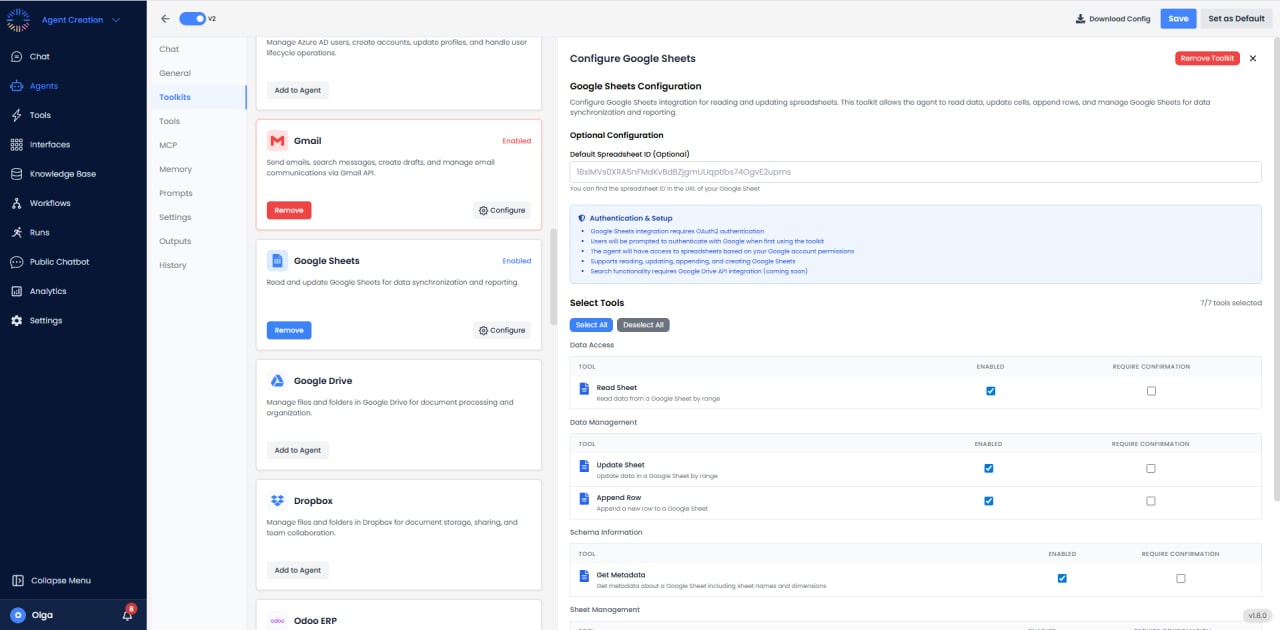

- Value Input Option: Choose between RAW (preserves exact input) or USER_ENTERED (parses as if typed).
- Value Render Option: Control how values are returned (FORMATTED_VALUE, UNFORMATTED_VALUE, FORMULA).
- Default Spreadsheet ID: Set default spreadsheet for operations to avoid repeated ID specification.
- Date Time Render Option: Choose serial number or formatted string for dates/times.
- Dimension: Specify whether operations apply to ROWS or COLUMNS.
Use Cases
- Automated Reporting: Query database, process results with Python, write formatted reports to Sheets with charts.
- Data Entry Automation: Extract data from emails, documents, or forms and populate spreadsheet rows.
- Real-time Dashboards: Continuously update metrics sheets that power stakeholder dashboards.
- Inventory Management: Sync product data between ERP systems and collaborative Sheets trackers.
- Budget Tracking: Aggregate expense data from multiple sources into consolidated budget sheets.
- Survey Response Processing: Collect form responses, analyze with Python, and write insights to summary sheets.
- Project Status Reports: Pull task data from Jira/Asana, format, and publish to stakeholder-accessible Sheets.
- Sales Pipeline Visualization: Export CRM data to Sheets with calculated fields and conditional formatting.
Best Practices
- Use Spreadsheet ID: Always reference by spreadsheet ID (from URL) rather than name for stability.
- Batch Operations: Combine multiple updates in single batchUpdate call to improve performance.
- Cache Metadata: Store sheet structure information to minimize metadata API calls.
- Named Ranges: Use named ranges for important data regions to make code more maintainable.
- Append vs Insert: Use append for adding new data; it’s faster and safer than finding last row.
- Read Large Datasets: For sheets >10,000 rows, read in chunks to avoid timeout and memory issues.
- Formula Handling: When writing formulas, use the RAW value input option and prefix with ”=”.
Performance Tips
- Minimize API calls by batching operations and reading larger ranges at once.
- Use appropriate value render options - UNFORMATTED_VALUE is faster when formatting is not needed.
- Avoid excessive formatting operations which are resource-intensive.
- For large datasets, consider using IMPORTRANGE in Sheets instead of repeatedly reading via API.
Common Issues & Solutions
- Permission Denied: Verify spreadsheet is shared with agent’s service account or user has granted access.
- Invalid Range: Check A1 notation syntax (e.g., “Sheet1!A1:B10”). Include sheet name for multi-sheet files.
- Rate Limit Exceeded: Implement exponential backoff. Consider using batch operations to reduce call count.
- Data Type Mismatch: Ensure data types match expected format (numbers as numbers, not strings).