

Authentication & Setup
Google Drive integration provides comprehensive file storage and management capabilities through OAuth 2.0 authentication. Agents can interact with personal Drive accounts and shared Team Drives (Shared Drives) in Google Workspace organizations. The integration supports all major file types including documents, spreadsheets, presentations, images, videos, and PDFs.Required API Scopes
- drive: Full access to all files in Drive including Team Drives.
- drive.file: Access only to files created or opened by the application.
- drive.readonly: Read-only access to view and download files.
- drive.metadata: Access to file metadata without file content access.
- drive.appdata: Access to application-specific data folder.
Available Operations
With all required permissions configured, the toolkit enables the following operations:File Operations
- Upload File: Upload files from agent workspace to Drive with metadata (name, description, MIME type).
- Download File: Retrieve files for local processing or analysis.
- List Files: Browse files and folders with filtering by name, type, owner, or modification date.
- Search Files: Full-text search across file names and content using query parameters.
- Get File: Retrieve detailed file metadata including permissions, owners, and version history.
- Update File: Modify file content or metadata without changing file ID.
- Delete File: Move files to trash or permanently delete.
- Restore File: Recover files from trash.
- Export File: Convert Google Workspace files to standard formats (Docs to PDF, Sheets to Excel, etc.).
Folder Management
- Create Folder: Create new folders with custom names for organization.
- Move File: Relocate files between folders by updating parent references.
- Copy File: Duplicate files with new names or to different locations.
- List Folder Contents: Retrieve all files within a specific folder.
- Get Folder Path: Determine full path hierarchy for any folder.
Sharing & Permissions
- Share File: Generate sharing links with configurable permissions (view, comment, edit).
- Create Permission: Grant specific users or groups access to files.
- Update Permission: Modify existing access permissions.
- Remove Permission: Revoke access for users or sharing links.
- List Permissions: View all users and groups with access to a file.
- Set Link Expiration: Configure automatic expiration for sharing links.
- Restrict Download: Prevent viewers from downloading, printing, or copying content.
Advanced Operations
- Get File Metadata: Retrieve creation date, modified date, size, owner, MIME type, thumbnail.
- Watch File: Set up notifications for file changes (webhooks).
- Get File Revisions: Access version history and restore previous versions.
- Add Comment: Post comments on Google Docs, Sheets, Slides files.
- Batch Operations: Perform multiple file operations in a single API call.
Configuration Options
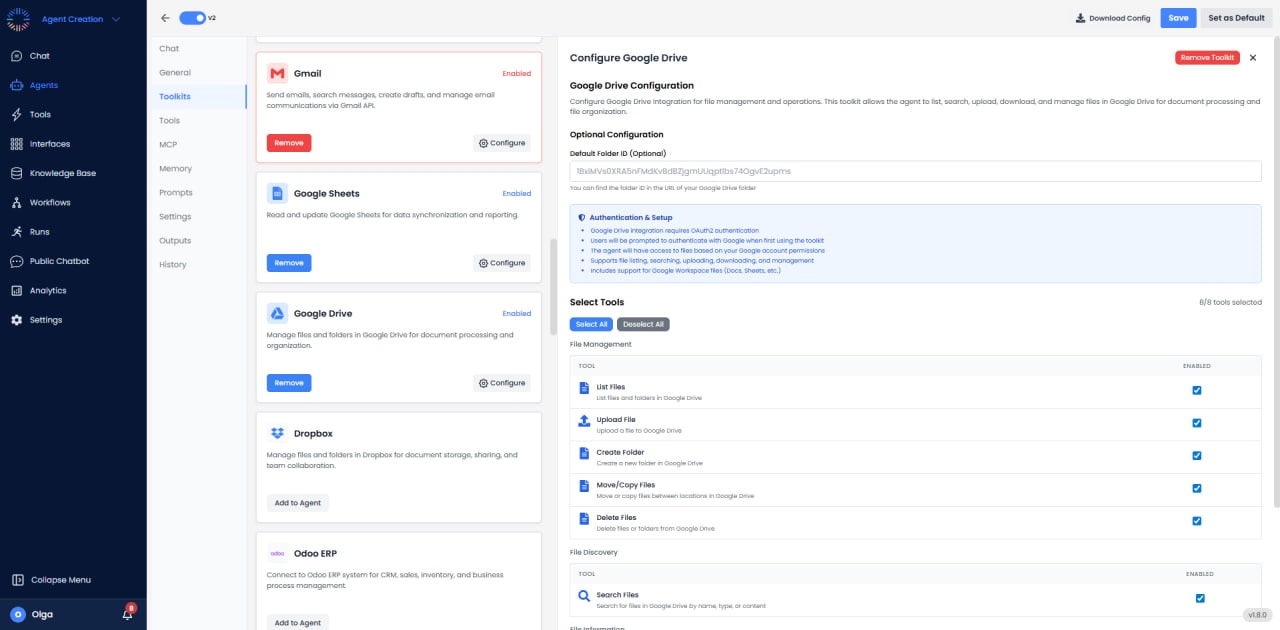

- Default Folder: Set default upload location to specific folder or Team Drive.
- File Size Limit: Configure maximum upload size (API limit is 5GB per file).
- Include Trashed: Whether to include trashed files in list/search results.
- Supports Team Drives: Enable access to Team Drives (Shared Drives) in Workspace accounts.
- Corpus: Search scope - user’s Drive, Team Drives, or all domains.
Use Cases
- Document Backup: Automatically backup important files from project workspace to Drive with version control.
- File Organization: Auto-categorize and move uploaded files to appropriate folders based on content or metadata.
- Content Distribution: Upload reports, generate sharing links, and distribute to stakeholders via email.
- Collaborative Workflows: Upload drafts to Team Drives, share with team, track comments and revisions.
- Data Migration: Bulk transfer files between storage systems using Drive as intermediary.
- Media Library Management: Organize images, videos, and assets with metadata tagging and search.
- Document Processing Pipeline: Download files, process with Python/Node.js, upload results back to Drive.
Best Practices
- Use File IDs: Always reference files by ID rather than name to avoid ambiguity with duplicates.
- Implement Resumable Uploads: For files >5MB, use resumable upload protocol to handle interruptions.
- Batch Requests: Combine multiple operations to reduce API calls and improve performance.
- Monitor Quota: Track API usage against daily quota limits (varies by account type).
- Organize with Folders: Use clear folder hierarchies instead of flat structure for large file collections.
- Set Appropriate Permissions: Use least privilege principle when sharing files.
Common Issues & Solutions
- Upload Timeouts: For large files, use resumable upload and implement retry logic.
- Permission Denied: Verify user has granted drive scope during OAuth. Check file ownership and permissions.
- Duplicate Files: Drive allows multiple files with same name. Use search by ID or include parent folder in queries.
- Rate Limit: Implement exponential backoff for retries. Consider caching frequently accessed metadata.