

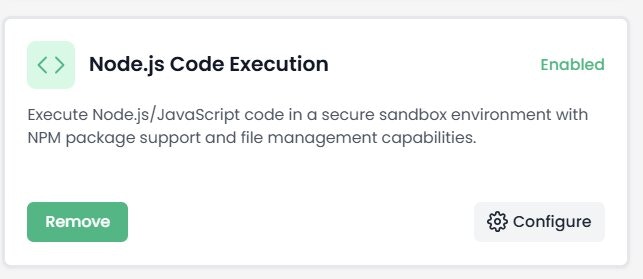
- Open your agent > “Toolkits” tab > “Code & Development” category > Find “Node.js Code Execution” toolkit.
- Click “Add to Agent” on Node.js Code Execution, then “Configure”. Click “Save”.
Node.js Code Execution Toolkit
Execute Node.js/JavaScript code in a secure sandbox environment with NPM package support and file management capabilities. Optimized for JavaScript/TypeScript workloads, API integrations, JSON processing, async operations, and web automation.Node.js Toolkit Configuration
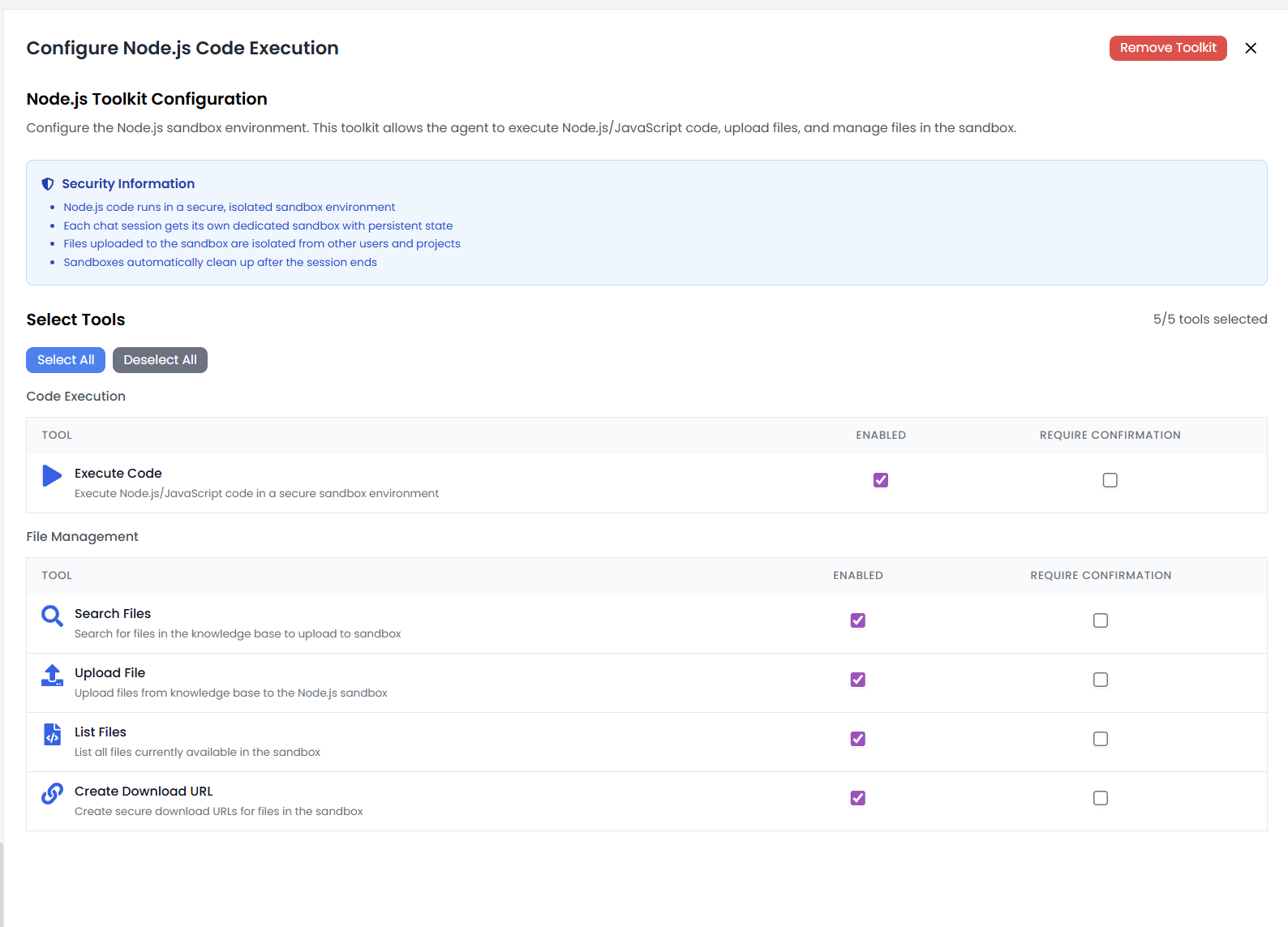
Security Information
- Node.js code runs in a secure, isolated sandbox environment
- Each chat session gets its own dedicated sandbox with persistent state
- Files uploaded to the sandbox are isolated from other users and projects
- Sandboxes automatically clean up after the session ends
Available Tools (5/5)
Code Execution:- Execute Code: Execute Node.js/JavaScript code in a secure sandbox environment
- Search Files: Search for files in the knowledge base to upload to sandbox
- Upload File: Upload files from knowledge base to the Node.js sandbox
- List Files: List all files currently available in the sandbox
- Create Download URL: Create secure download URLs for files in the sandbox
Use Cases
- API Integration: Call REST APIs and handle OAuth flows.
- JSON Processing: Parse and transform JSON data structures.
- Web Automation: Scrape websites and automate forms.
- Data Transformation: Convert between formats (CSV, JSON, XML, YAML).
Example Code
Below is an example Node.js script demonstrating NPM package usage, dependency checking, and the requiredmodule.exports pattern with a main() entry point function:
Key Points from Example
- Entry Point: The
main()function is the entry point, exported viamodule.exports = { main }. - NPM Packages: Use
require()to import installed packages (e.g., lodash, axios, @google-cloud/bigquery). - Package Checking: Use
require.resolve()to check if a package is available in the sandbox. - Async Support: The main function can be async for handling API calls and file operations.
- Parameters: Define parameters with defaults (e.g.,
maxLength = 100,options = {}) for flexible input. - Return Format: Return results as an object (e.g.,
{ data: ... }) for structured output.