> ## Documentation Index
> Fetch the complete documentation index at: https://learn.getodin.ai/llms.txt
> Use this file to discover all available pages before exploring further.
# Integrate Odin AI Chatbot to Google Workspace
> Bring Odin AI to Google Chat
Integrating the Odin AI Chatbot with Google Workspace enables seamless access to your AI assistant directly within Google Chat. This integration allows your team to interact with Odin AI in real time, whether it's answering questions, automating workflows, or supporting daily operations, all without leaving your workspace.
This article guides you through installing and setting up the Odin AI Chatbot in Google Workspace, enabling your team to collaborate more efficiently and streamline daily tasks.
## Prerequisites
* Your project is **Public**
* You have:
* Pre-configured the appearance of your Odin AI chatbot
* your Project's `project id` at hand
* a set of **API Key + Secret** to setup the Odin AI app in Google Workspace
## Install Odin AI in Google Workspace
1. In your Odin AI project, navigate to **Public Chatbot**.
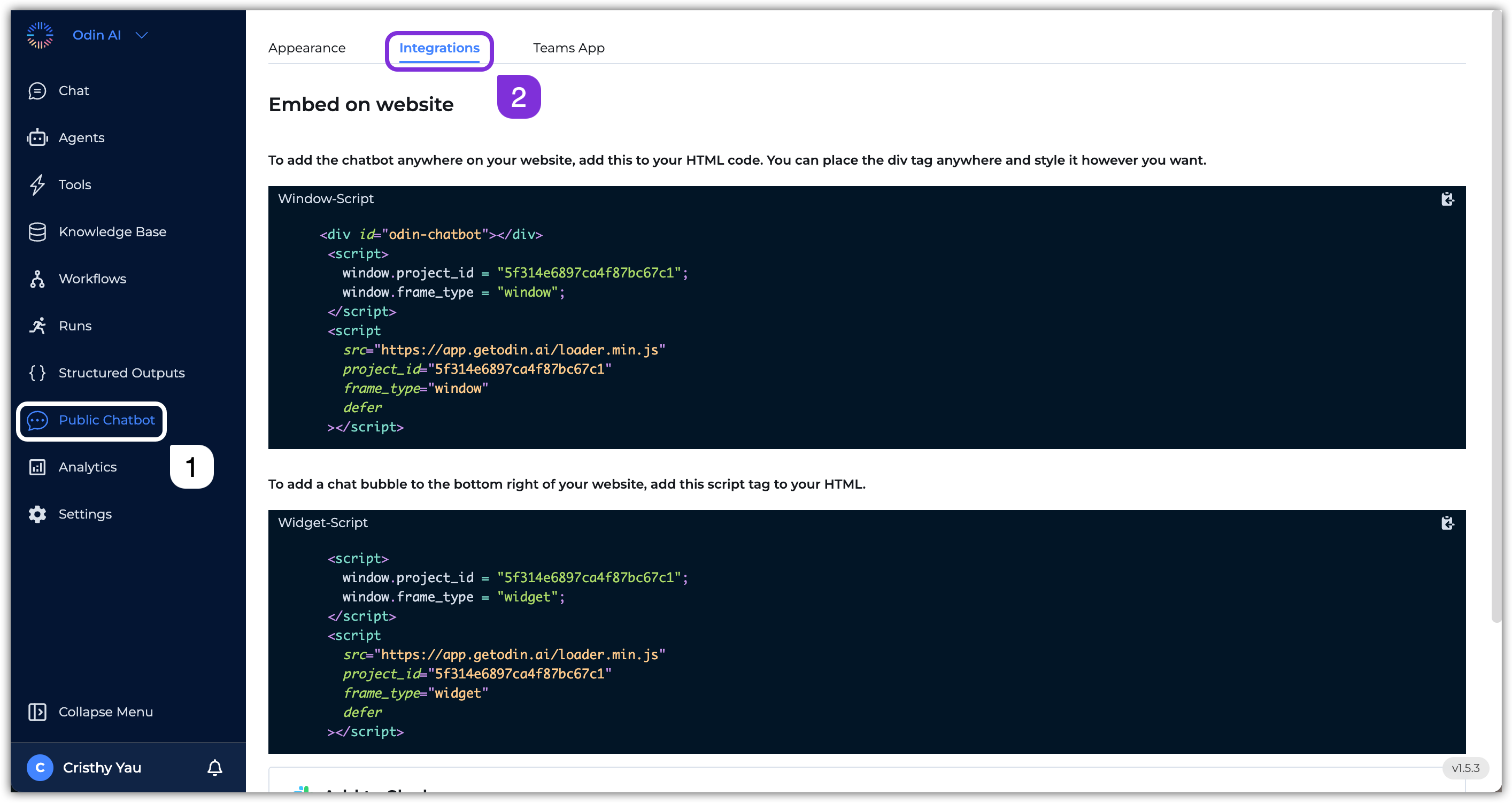 2. Go to the **Integrations** tab.
3. Scroll down to the **Add to Google Chat** section and click **Add Bot**. You will be redirected to Google Workspace Marketplace.
2. Go to the **Integrations** tab.
3. Scroll down to the **Add to Google Chat** section and click **Add Bot**. You will be redirected to Google Workspace Marketplace.
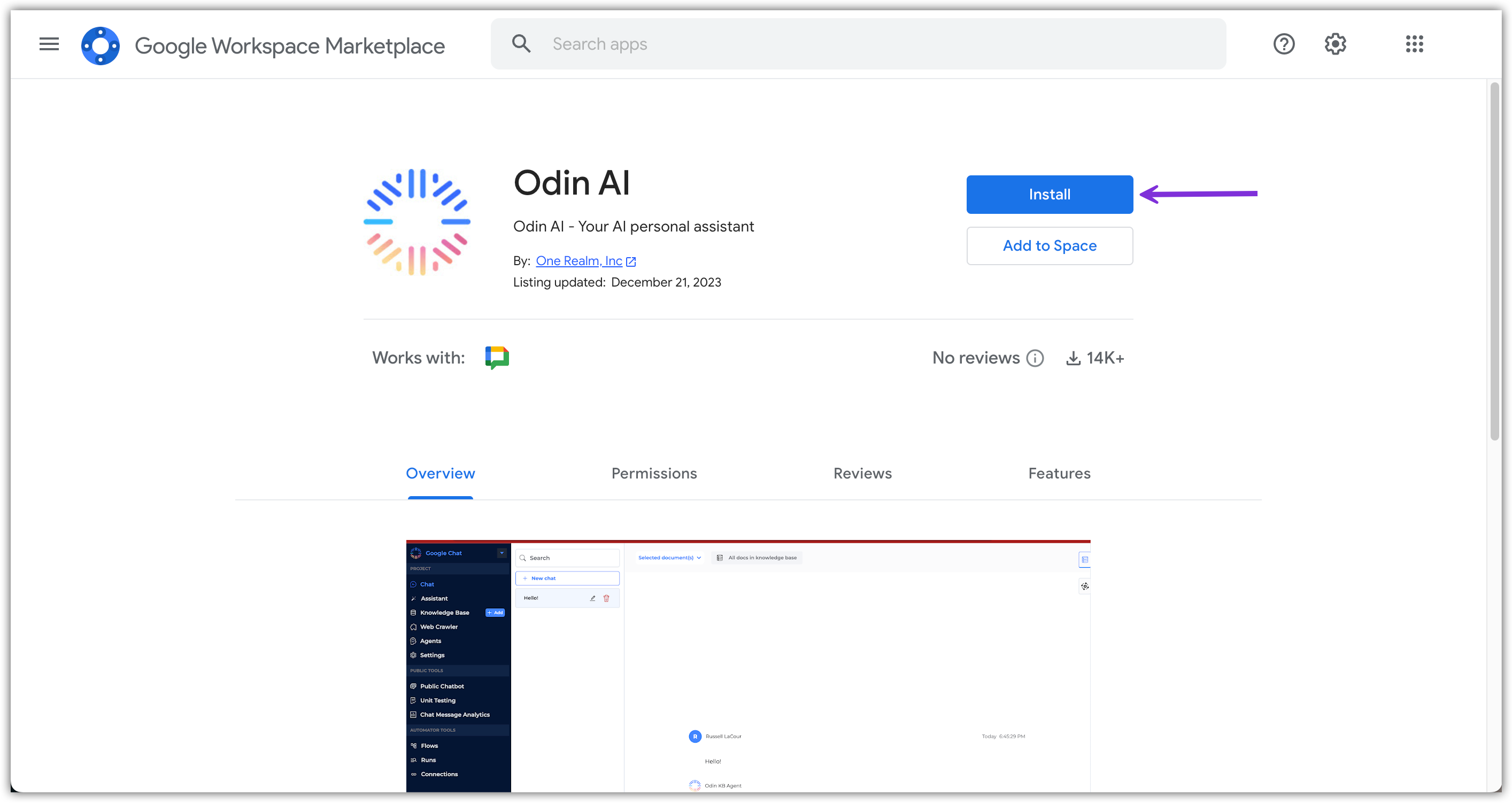
 4. In Google Workspace Marketplace, click **Install**.
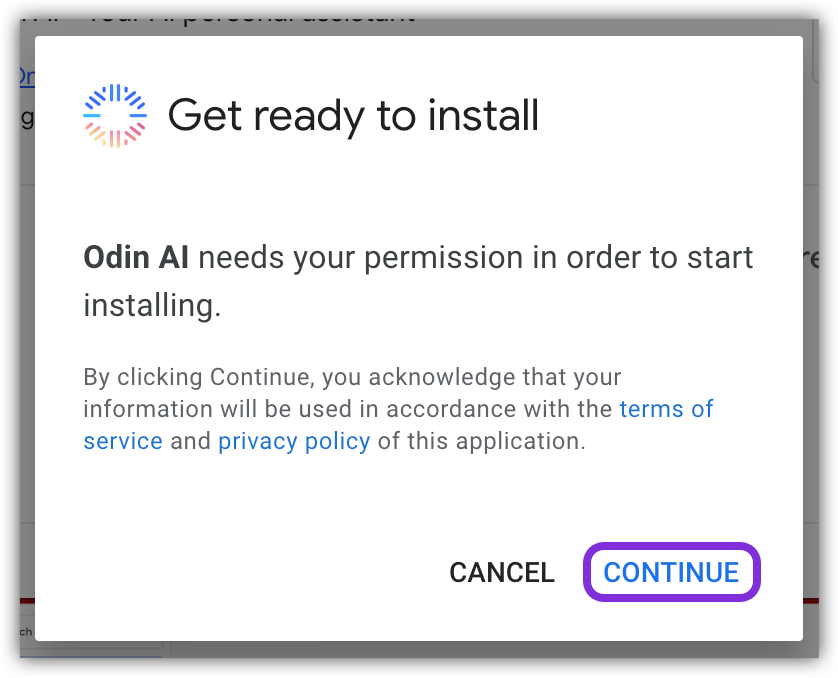
 5. In the pop-up that appears, click **Continue** to start installing.
 6. Another pop-up window appears, requiring you to sign in to your Google Workspace account.
7. After signing in, it will require you to grant permissions to One Realm Inc. to access specific information.
8. Once all required permissions are granted, Odin AI will be installed in your Google Workspace. Click **Done** to close the pop-up.
6. Another pop-up window appears, requiring you to sign in to your Google Workspace account.
7. After signing in, it will require you to grant permissions to One Realm Inc. to access specific information.
8. Once all required permissions are granted, Odin AI will be installed in your Google Workspace. Click **Done** to close the pop-up.
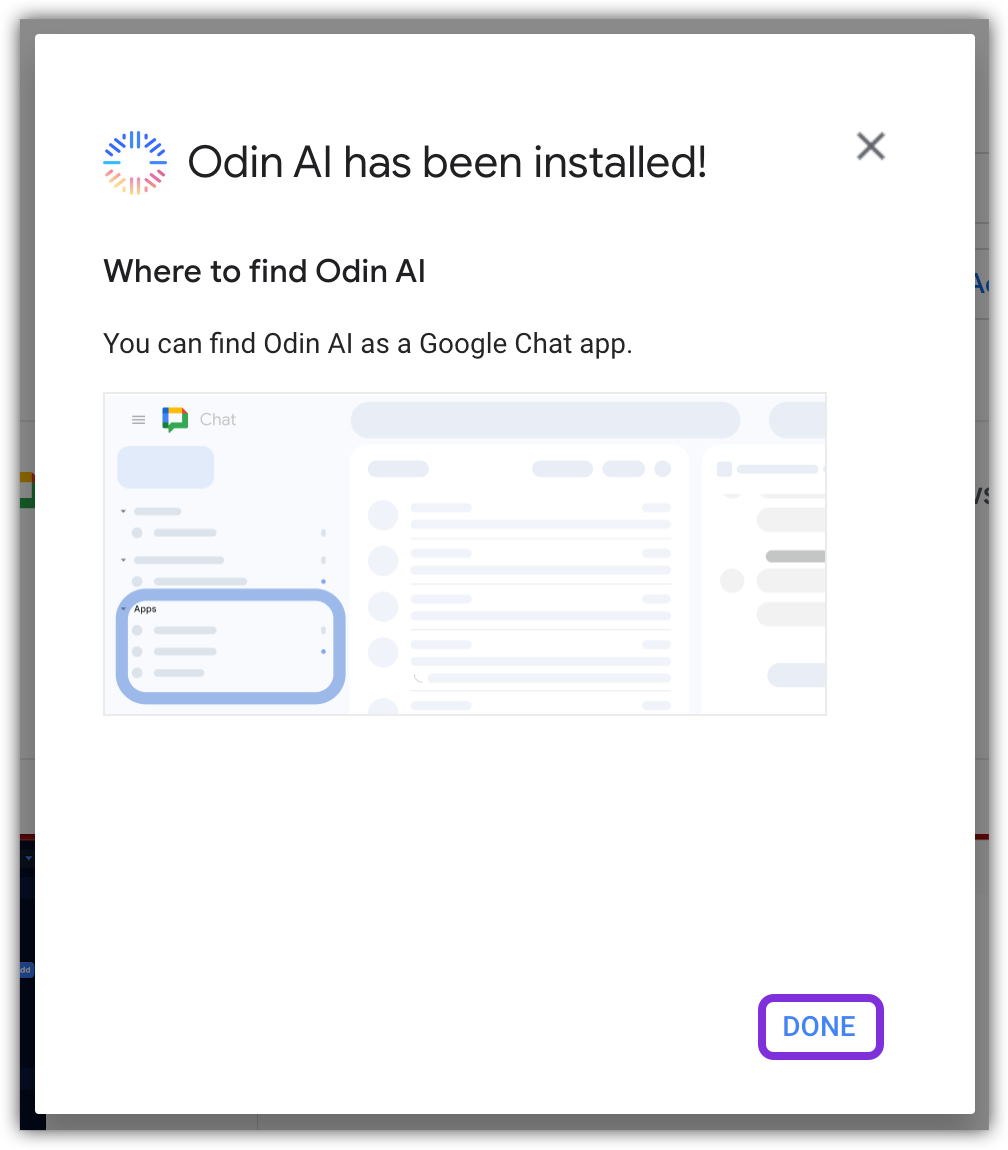 9. Navigate to **Google Chat** and locate the *Odin AI* app under the **Apps** section.
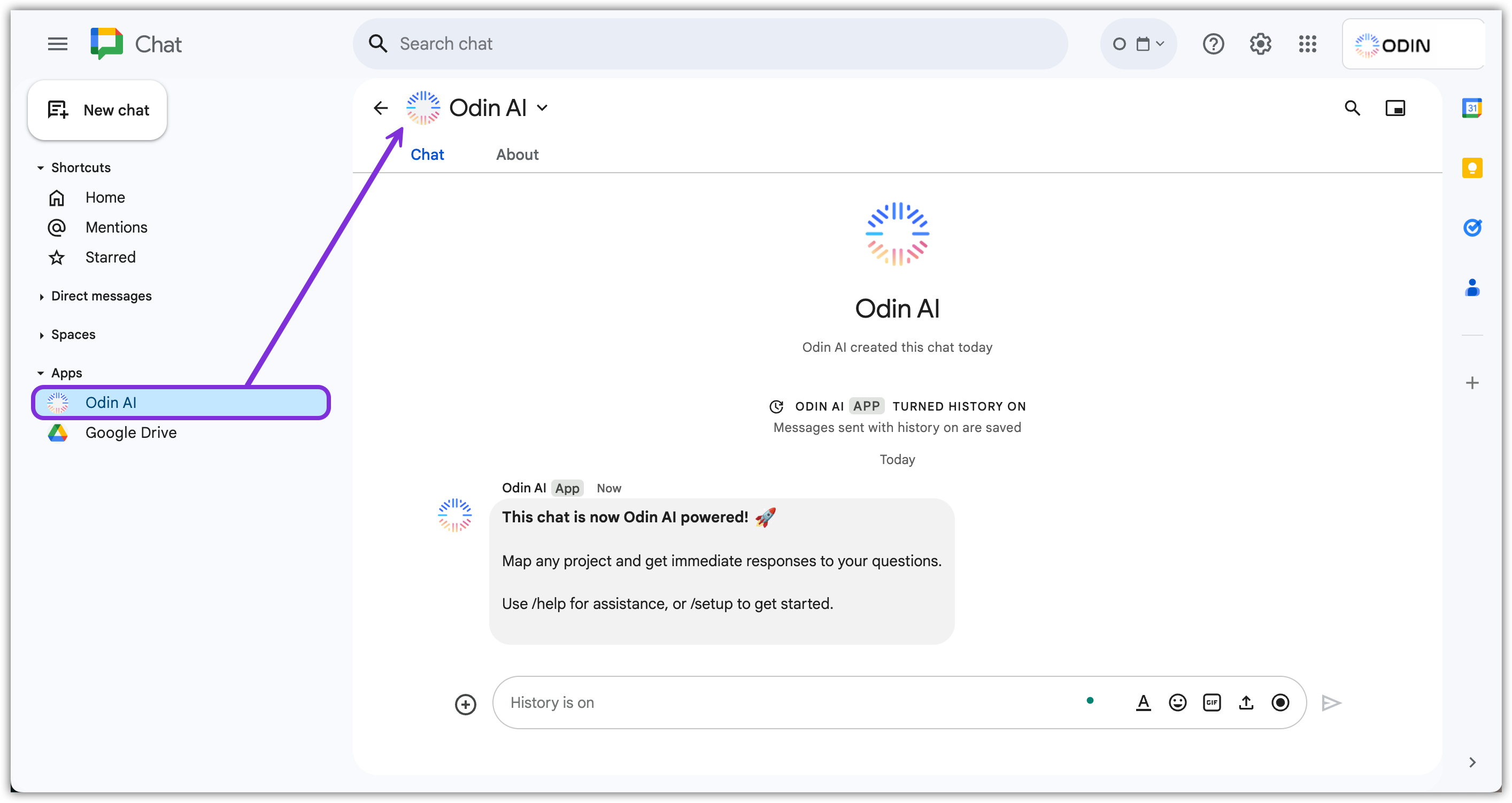 Now that the Odin AI app is installed in your Google Workspace, you need to
set it up to begin using it!
## Set Up Odin AI in Google Chat
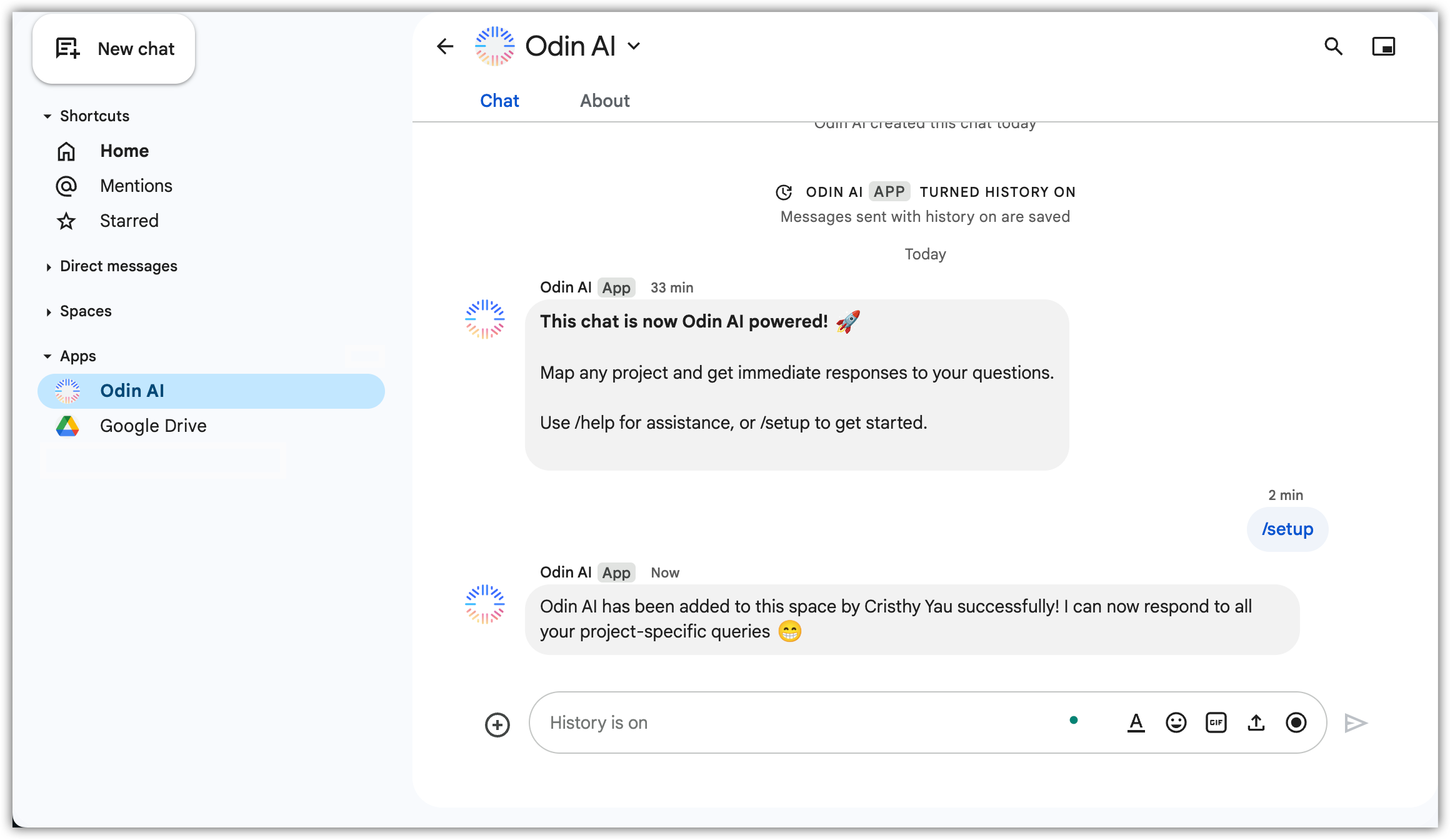
1. Within the Odin AI chat in Google Chat, type `/setup`, click the option that appears above the text box, and click **Send** . This command prompts the Odin AI app setup window to enter project details.
Now that the Odin AI app is installed in your Google Workspace, you need to
set it up to begin using it!
## Set Up Odin AI in Google Chat
1. Within the Odin AI chat in Google Chat, type `/setup`, click the option that appears above the text box, and click **Send** . This command prompts the Odin AI app setup window to enter project details.
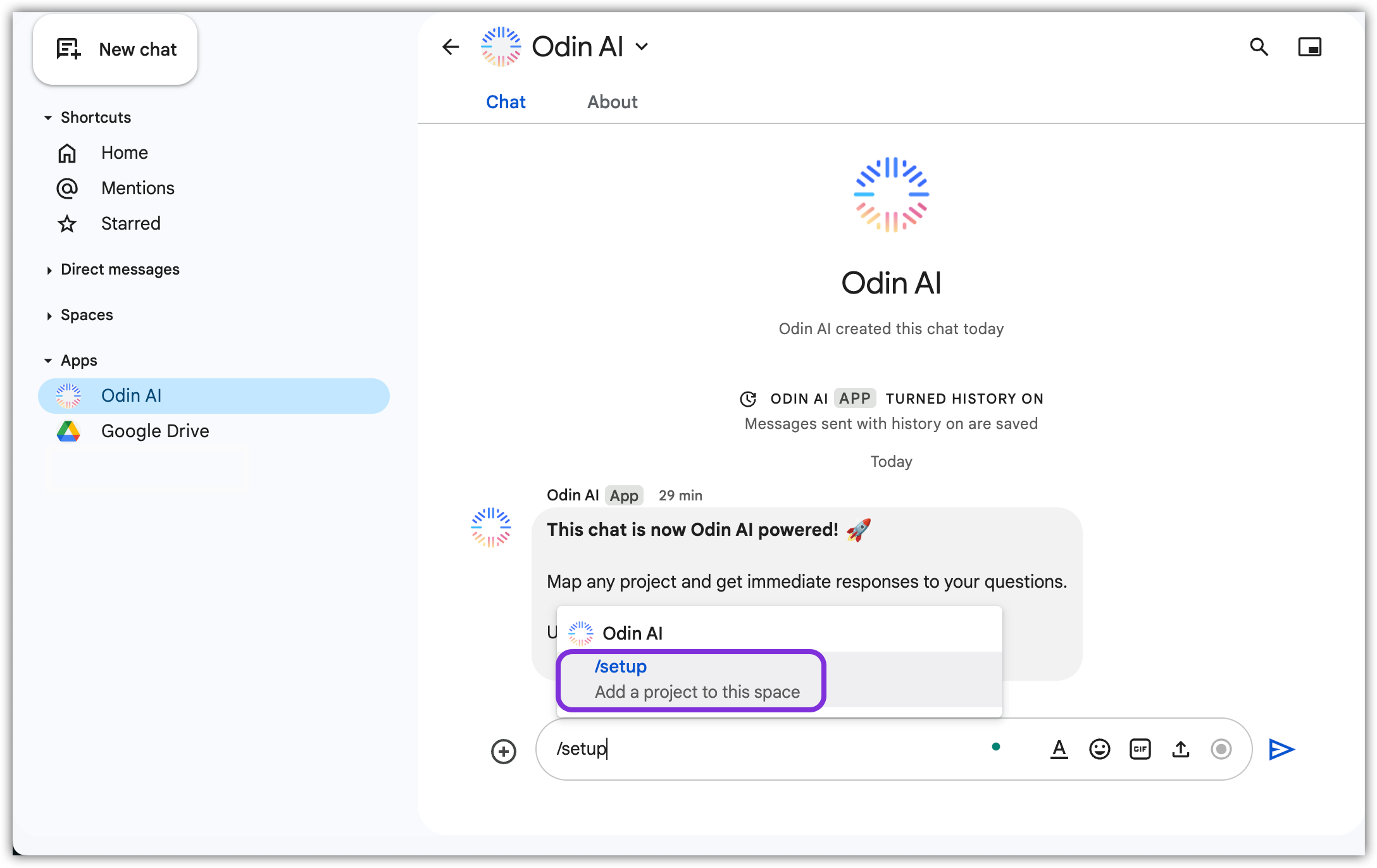 2. In the pop-up that appears, enter the following information and click **Submit**:
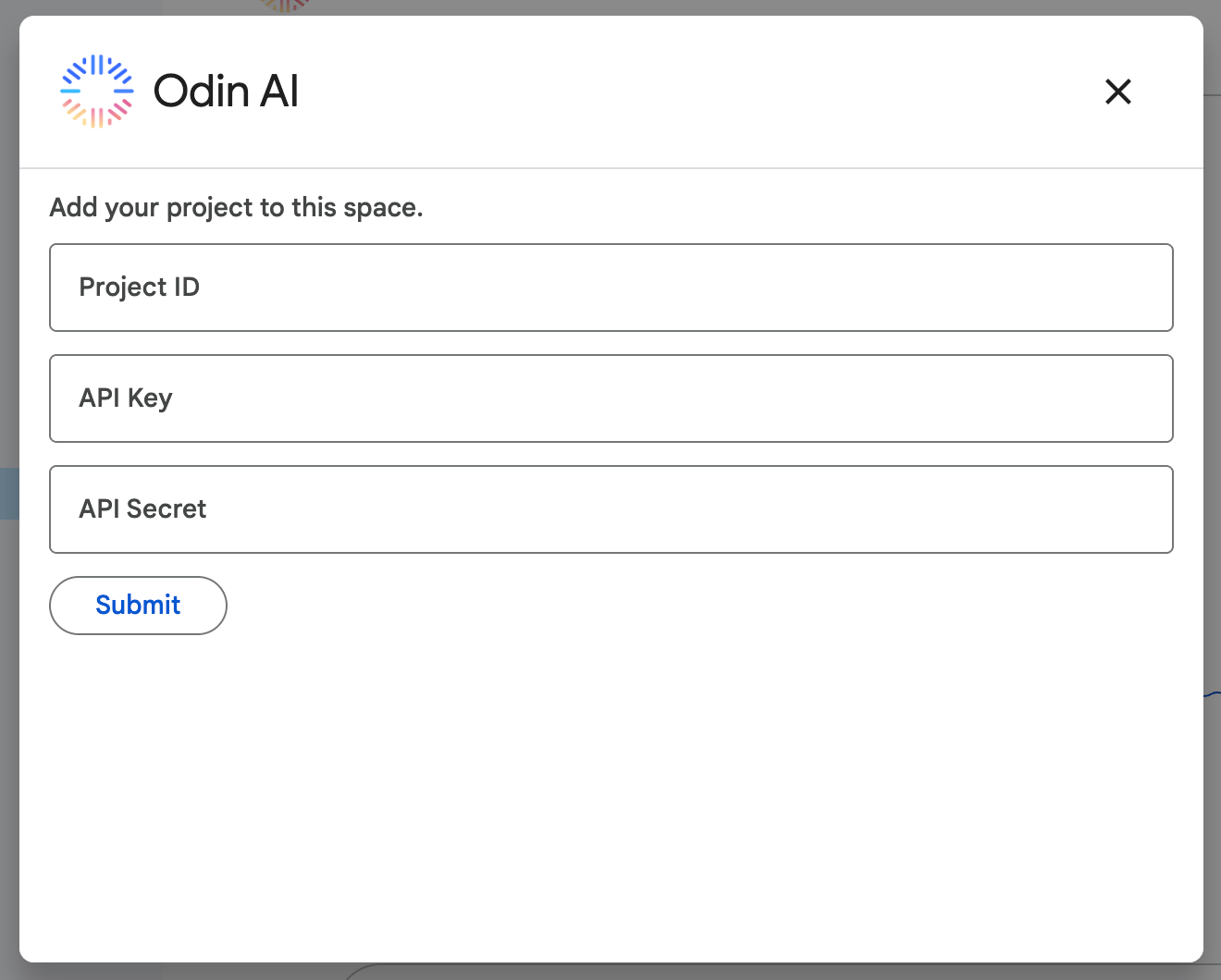 a. Project ID
b. API Key
c. API Secret
3. The Odin AI app is not ready to use within Google Chat!
a. Project ID
b. API Key
c. API Secret
3. The Odin AI app is not ready to use within Google Chat!