> ## Documentation Index
> Fetch the complete documentation index at: https://learn.getodin.ai/llms.txt
> Use this file to discover all available pages before exploring further.
# Connect Google Drive to the Knowledge Base
> Sync Google Drive files with the Knowledge Base.
With the **Google Drive connector**, you can bring documents, spreadsheets, presentations, and other files directly into the Knowledge Base. Once connected, Odin AI Platform automatically syncs content from your Google Drive, making it searchable and accessible to your AI agents. This ensures your most up-to-date files are always available — empowering your team to retrieve insights, answer questions, and build AI-driven workflows from your existing Google Drive data.
## Connecting to Google Drive
In your Odin AI Platform project, navigate to **Settings** in the sidebar.
Select the **Connections** tab and find the **Google Drive** tile.
Click the **Google Drive** tile. A popup appears with the option to connect your Google Drive to sync files into your Knowledge Base. Click **+ Connect Google Drive**.
You will be redirected to Google's sign-in page. Authenticate with your Google account and grant Odin AI Platform the necessary permissions to access your files.
Once connected, your Google account will appear listed under the Google Drive connection in the **Connections** tab.
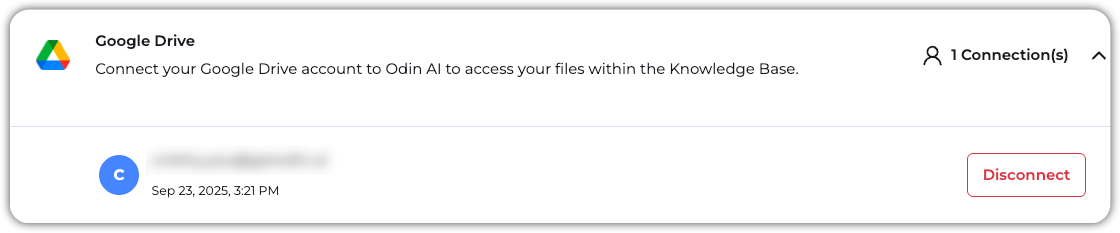 You're now ready to sync files from Google Drive into the Knowledge Base!
## Adding Data from Google Drive
In your Odin AI Platform project, navigate to **Knowledge Base** > **KB Data**.
Click **+ New** and select **URL Upload**.
In the popup that appears, paste the URL of the Google Drive file or folder you want to add to the Knowledge Base and click **Add URL**.
Once files are added, you'll receive the following confirmation message:
You're now ready to sync files from Google Drive into the Knowledge Base!
## Adding Data from Google Drive
In your Odin AI Platform project, navigate to **Knowledge Base** > **KB Data**.
Click **+ New** and select **URL Upload**.
In the popup that appears, paste the URL of the Google Drive file or folder you want to add to the Knowledge Base and click **Add URL**.
Once files are added, you'll receive the following confirmation message:
