> ## Documentation Index
> Fetch the complete documentation index at: https://learn.getodin.ai/llms.txt
> Use this file to discover all available pages before exploring further.
# Predefined and Custom Models
> Configure LLM models for your agents - use default models or bring your own API keys
Odin AI not only brings you the latest and most popular models available, we enable you to connect to your own custom model with our "Bring Your Own Keys" (BYOK) feature. This gives you the ability to create custom Agents and test how they respond or complete the tasks you give them so that you can use the LLM that produces the best results for your use case. In this article you'll learn about the different LLMs that are available and how to connect your own custom LLM to your Agents.
Your agents can use two types of models:
* **Predefined Models** - Pre-configured models available to all users
* **Custom Models** - Models you configure with your own API keys (BYOK)
## Predefined Models
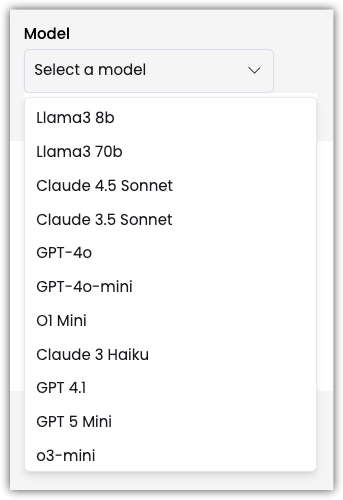 Predefined models are available by default and don't require API key configuration. These models are managed by Odin and are ready to use.
Odin provides access to a wide range of models from leading AI providers, including OpenAI, Anthropic, Google AI, and more. The full list of available models is displayed in the model selector when configuring your agent.
### Frontier Models
Frontier models represent the latest and most advanced AI capabilities available. These cutting-edge models offer superior performance for complex tasks:
#### OpenAI Frontier Models
* **GPT-4o** - Latest GPT-4 model with improved performance, faster responses, and enhanced capabilities
* **O1 Mini** - Advanced reasoning model optimized for complex problem-solving and step-by-step thinking
* **GPT-4 Turbo** - High-performance model with extended context window
#### Anthropic Frontier Models
* **Claude 3.5 Sonnet** - Latest Claude model with advanced reasoning, long context (200K tokens), and superior performance
* **Claude 3 Opus** - Most capable Claude model for complex, nuanced tasks requiring deep understanding
#### Google AI Frontier Models
* **Gemini Pro** - Google's latest advanced language model with multimodal capabilities and extended context
### Other Available Models
In addition to frontier models, Odin provides access to a comprehensive selection of models including:
* **GPT-3.5 Turbo** - Fast and cost-effective option for general tasks
* **Claude 3 Haiku** - Fast and efficient Claude model
* **Llama 3** - Open-source models (8B and 70B variants)
* **Mixtral** - High-performance open-source model
* **DeepSeek** - Advanced reasoning model
* And many more...
All available models are visible in the model selector dropdown when configuring your agent. Models are organized by provider and show their cost, capabilities, and availability status.
### Model Selection
1. Navigate to **Agents** in the sidebar
2. Select or create an agent
3. Click **Edit** to open the agent builder
4. Go to the **General** tab
5. Find the **Model** section
6. Select a predefined model from the dropdown
### Model Information
Each predefined model shows:
* **Model Name** - Display name (e.g., "GPT-4o")
* **Provider** - API provider (OpenAI, Anthropic, Google AI)
* **Cost** - Credits per use
* **Status** - Available or requires upgrade
## Custom Models (BYOK)
Bring Your Own Key (BYOK) allows you to configure custom models using your own API keys. This gives you:
* **Cost Control** - Use your own API keys and billing
* **Model Flexibility** - Access models not available in predefined list
* **Custom Endpoints** - Connect to private or custom model endpoints
* **Provider Choice** - Use any compatible API provider
### Supported Providers
#### OpenAI
* Standard OpenAI API models
* Azure OpenAI endpoints
* Custom OpenAI-compatible endpoints
**Configuration:**
* API Key: Your OpenAI API key
* API URL: `https://api.openai.com/v1` (default)
* Model Name: e.g., `gpt-4`, `gpt-3.5-turbo`
#### Anthropic
* Claude models via Anthropic API
* Custom Anthropic-compatible endpoints
**Configuration:**
* API Key: Your Anthropic API key
* API URL: `https://api.anthropic.com` (default)
* Model Name: e.g., `claude-3-5-sonnet-20241022`
#### Google AI
* Gemini models via Google AI API
* Custom Google AI endpoints
**Configuration:**
* API Key: Your Google AI API key
* API URL: `https://generativelanguage.googleapis.com/` (default)
* Model Name: e.g., `gemini-pro`
#### OpenRouter
* Access to multiple model providers through OpenRouter
* Unified API for various models
**Configuration:**
* API Key: Your OpenRouter API key
* API URL: OpenRouter endpoint
* Model Name: Any model available on OpenRouter
#### AWS Bedrock
* Amazon Bedrock models
* Access to various foundation models
**Configuration:**
* AWS credentials configured separately
* API URL: Bedrock endpoint
* Model Name: Bedrock model identifier
#### Custom Endpoints
* Any OpenAI-compatible API endpoint
* Private model deployments
* Self-hosted models
**Configuration:**
* API Key: Your custom API key (if required)
* API URL: Your custom endpoint URL
* Model Name: Your model identifier
## Adding Custom Models
### Step 1: Access Model Configuration
1. Navigate to **Agents** in the sidebar
2. Select or create an agent
3. Click **Edit** to open the agent builder
4. Go to the **General** tab
5. Scroll to the **AI Models** section
6. Click the **Custom** tab
### Step 2: Add New Model
1. Click **Add Custom Model** button
2. The model configuration modal will open
### Step 3: Configure Model Settings
#### Basic Information
**Model Name**
* Enter a descriptive name for your model
* Example: "My GPT-4", "Company Claude", "Custom Model"
**Model Version/ID**
* Enter the model identifier
* Example: `gpt-4`, `claude-3-5-sonnet-20241022`, `gemini-pro`
* This is the actual model name used in API calls
#### API Configuration
**API Provider**
* Select your API provider from the dropdown:
* OpenAI
* Anthropic
* Google AI
* OpenRouter
* AWS Bedrock
* Custom
**API Key**
* Enter your API key for the selected provider
* Keys are stored securely and encrypted
* Required for most providers
**API URL**
* Enter the API endpoint URL
* Default URLs are pre-filled based on provider
* For custom endpoints, enter your full URL
**API Version** (Optional)
* For Azure OpenAI, specify API version
* Example: `2024-12-01-preview`
#### Model Limits
**Max Input Tokens**
* Maximum tokens the model can accept as input
* Example: `60000`, `100000`, `200000`
* Default: `3000`
**Max Response Tokens**
* Maximum tokens the model can generate
* Example: `4096`, `8000`, `16000`
* Default: `1000`
#### Advanced Settings
**Custom Headers** (Optional)
* Add custom HTTP headers if required
* Example: `X-Custom-Header: value`
* Useful for custom authentication or metadata
**Model Extra Parameters** (Optional)
* Additional parameters for model configuration
* JSON format
* Provider-specific settings
### Step 4: Save Model
1. Review all configuration settings
2. Click **Save** or **Add Model**
3. The model is now available in your Custom models list
## Using Custom Models
### Selecting a Custom Model
1. In the **General** tab, find the **Model** section
2. The dropdown shows both predefined and custom models
3. Custom models are marked or shown in a separate section
4. Select your custom model
### Model Availability
* Custom models are **project-specific**
* Models are available to all agents in the project
* Each project can have its own set of custom models
## Managing Custom Models
### Viewing Custom Models
1. Go to **Agents** → **Edit Agent** → **General** tab
2. Click the **Custom** tab in the AI Models section
3. See all your custom models listed
### Editing Custom Models
1. Find the model in the Custom models list
2. Click the **Edit** icon (three dots menu)
3. Modify configuration settings
4. Click **Save** to update
Editing the API key will replace the existing key. Make sure you have the
correct key before saving.
### Deleting Custom Models
1. Find the model in the Custom models list
2. Click the **Delete** icon (three dots menu)
3. Confirm deletion
4. The model is removed from your project
Deleting a custom model will affect all agents using that model. Make sure to
update those agents first.
## Model Configuration Examples
### Example 1: OpenAI Custom Model
```json theme={null}
{
"model_name": "My GPT-4",
"version": "gpt-4",
"api_provider": "openai",
"api_type": "openai",
"api_key": "sk-...",
"api_url": "https://api.openai.com/v1",
"max_input_tokens": 60000,
"max_response_tokens": 4096
}
```
### Example 2: Azure OpenAI
```json theme={null}
{
"model_name": "Azure GPT-4",
"version": "gpt-4",
"api_provider": "openai",
"api_type": "azure",
"api_key": "your-azure-key",
"api_url": "https://your-resource.openai.azure.com",
"api_version": "2024-12-01-preview",
"max_input_tokens": 60000,
"max_response_tokens": 4096
}
```
### Example 3: Anthropic Claude
```json theme={null}
{
"model_name": "Company Claude",
"version": "claude-3-5-sonnet-20241022",
"api_provider": "anthropic",
"api_type": "anthropic",
"api_key": "sk-ant-...",
"api_url": "https://api.anthropic.com",
"max_input_tokens": 60000,
"max_response_tokens": 4000
}
```
### Example 4: Custom Endpoint
```json theme={null}
{
"model_name": "Private Model",
"version": "custom-model-v1",
"api_provider": "custom",
"api_type": "custom",
"api_key": "your-custom-key",
"api_url": "https://your-custom-endpoint.com/v1",
"max_input_tokens": 100000,
"max_response_tokens": 8000,
"auth_header_template": "{\"Authorization\": \"Bearer \"}"
}
```
## Best Practices
### API Key Security
* **Never Share Keys** - Keep API keys confidential
* **Use Environment Variables** - For development, use secure storage
* **Rotate Keys Regularly** - Update keys periodically
* **Monitor Usage** - Track API usage to detect issues
### Model Selection
* **Match Use Case** - Choose models appropriate for your task
* **Consider Cost** - Balance performance and cost
* **Test Performance** - Evaluate model quality for your needs
* **Monitor Limits** - Watch token limits and quotas
### Configuration
* **Accurate Model Names** - Use exact model identifiers
* **Correct URLs** - Verify API endpoint URLs
* **Appropriate Limits** - Set realistic token limits
* **Test Connections** - Verify model connectivity
### Cost Management
* **Track Usage** - Monitor API usage and costs
* **Set Budgets** - Configure spending limits if available
* **Optimize Tokens** - Use appropriate token limits
* **Review Regularly** - Audit model usage periodically
## Troubleshooting
### Model Not Available
**Problem**: Custom model doesn't appear in dropdown
**Possible Causes:**
* Model not saved correctly
* API key invalid
* Model configuration error
**Solutions:**
* Verify model was saved successfully
* Check API key is correct
* Review model configuration
* Refresh the page
### API Key Errors
**Problem**: "Invalid API key" or authentication errors
**Possible Causes:**
* Incorrect API key
* Expired API key
* Wrong API provider selected
* Key doesn't have required permissions
**Solutions:**
* Verify API key is correct
* Check key hasn't expired
* Confirm correct provider selected
* Ensure key has necessary permissions
### Connection Failures
**Problem**: Cannot connect to model endpoint
**Possible Causes:**
* Incorrect API URL
* Network connectivity issues
* Endpoint not accessible
* Firewall blocking connection
**Solutions:**
* Verify API URL is correct
* Check network connectivity
* Ensure endpoint is accessible
* Review firewall rules
### Token Limit Errors
**Problem**: "Token limit exceeded" errors
**Possible Causes:**
* Input too long
* Response limit too high
* Model limits exceeded
**Solutions:**
* Reduce input length
* Lower max response tokens
* Check model's actual limits
* Split large inputs
## Model Compatibility
### Knowledge Base v2
When using Knowledge Base v2, only certain models are supported:
* **OpenAI models** (openai, azure)
* **Anthropic models**
Other providers are not compatible with Knowledge Base v2.
### Feature Support
Different models support different features:
* **Streaming** - Most models support streaming responses
* **Function Calling** - OpenAI and Anthropic models
* **Vision** - GPT-4 Vision, Claude 3, Gemini Pro Vision
* **Long Context** - Claude 3.5 Sonnet, GPT-4 Turbo
## API Key Management
### Getting API Keys
#### OpenAI
1. Go to [OpenAI Platform](https://platform.openai.com)
2. Navigate to API Keys
3. Create a new secret key
4. Copy the key (starts with `sk-`)
#### Anthropic
1. Go to [Anthropic Console](https://console.anthropic.com)
2. Navigate to API Keys
3. Create a new key
4. Copy the key (starts with `sk-ant-`)
#### Google AI
1. Go to [Google AI Studio](https://makersuite.google.com/app/apikey)
2. Create a new API key
3. Copy the key
#### OpenRouter
1. Go to [OpenRouter](https://openrouter.ai)
2. Navigate to Keys
3. Create a new key
4. Copy the key
### Key Security
* **Store Securely** - Keys are encrypted in the database
* **Don't Share** - Never share API keys
* **Rotate Regularly** - Update keys periodically
* **Monitor Usage** - Watch for unauthorized use
## Cost Considerations
### Predefined Models
* Costs are managed by Odin
* Billed through your Odin subscription
* Credits-based pricing
* Transparent pricing model
### Custom Models (BYOK)
* You pay directly to the provider
* No additional Odin fees
* Full control over costs
* Direct billing from provider
### Cost Optimization
* **Choose Right Model** - Use appropriate model for task
* **Optimize Prompts** - Reduce token usage
* **Set Limits** - Configure max tokens appropriately
* **Monitor Usage** - Track API usage regularly
## Related Features
* **Agent Configuration** - Configure agent behavior
* **Model Settings** - Adjust temperature and other parameters
* **Token Management** - Monitor and optimize token usage
* **Cost Tracking** - Track model usage and costs
Learn how to configure your agents
## Support
Need help with model configuration? Contact [Support](mailto:support@getodin.ai).
Predefined models are available by default and don't require API key configuration. These models are managed by Odin and are ready to use.
Odin provides access to a wide range of models from leading AI providers, including OpenAI, Anthropic, Google AI, and more. The full list of available models is displayed in the model selector when configuring your agent.
### Frontier Models
Frontier models represent the latest and most advanced AI capabilities available. These cutting-edge models offer superior performance for complex tasks:
#### OpenAI Frontier Models
* **GPT-4o** - Latest GPT-4 model with improved performance, faster responses, and enhanced capabilities
* **O1 Mini** - Advanced reasoning model optimized for complex problem-solving and step-by-step thinking
* **GPT-4 Turbo** - High-performance model with extended context window
#### Anthropic Frontier Models
* **Claude 3.5 Sonnet** - Latest Claude model with advanced reasoning, long context (200K tokens), and superior performance
* **Claude 3 Opus** - Most capable Claude model for complex, nuanced tasks requiring deep understanding
#### Google AI Frontier Models
* **Gemini Pro** - Google's latest advanced language model with multimodal capabilities and extended context
### Other Available Models
In addition to frontier models, Odin provides access to a comprehensive selection of models including:
* **GPT-3.5 Turbo** - Fast and cost-effective option for general tasks
* **Claude 3 Haiku** - Fast and efficient Claude model
* **Llama 3** - Open-source models (8B and 70B variants)
* **Mixtral** - High-performance open-source model
* **DeepSeek** - Advanced reasoning model
* And many more...
All available models are visible in the model selector dropdown when configuring your agent. Models are organized by provider and show their cost, capabilities, and availability status.
### Model Selection
1. Navigate to **Agents** in the sidebar
2. Select or create an agent
3. Click **Edit** to open the agent builder
4. Go to the **General** tab
5. Find the **Model** section
6. Select a predefined model from the dropdown
### Model Information
Each predefined model shows:
* **Model Name** - Display name (e.g., "GPT-4o")
* **Provider** - API provider (OpenAI, Anthropic, Google AI)
* **Cost** - Credits per use
* **Status** - Available or requires upgrade
## Custom Models (BYOK)
Bring Your Own Key (BYOK) allows you to configure custom models using your own API keys. This gives you:
* **Cost Control** - Use your own API keys and billing
* **Model Flexibility** - Access models not available in predefined list
* **Custom Endpoints** - Connect to private or custom model endpoints
* **Provider Choice** - Use any compatible API provider
### Supported Providers
#### OpenAI
* Standard OpenAI API models
* Azure OpenAI endpoints
* Custom OpenAI-compatible endpoints
**Configuration:**
* API Key: Your OpenAI API key
* API URL: `https://api.openai.com/v1` (default)
* Model Name: e.g., `gpt-4`, `gpt-3.5-turbo`
#### Anthropic
* Claude models via Anthropic API
* Custom Anthropic-compatible endpoints
**Configuration:**
* API Key: Your Anthropic API key
* API URL: `https://api.anthropic.com` (default)
* Model Name: e.g., `claude-3-5-sonnet-20241022`
#### Google AI
* Gemini models via Google AI API
* Custom Google AI endpoints
**Configuration:**
* API Key: Your Google AI API key
* API URL: `https://generativelanguage.googleapis.com/` (default)
* Model Name: e.g., `gemini-pro`
#### OpenRouter
* Access to multiple model providers through OpenRouter
* Unified API for various models
**Configuration:**
* API Key: Your OpenRouter API key
* API URL: OpenRouter endpoint
* Model Name: Any model available on OpenRouter
#### AWS Bedrock
* Amazon Bedrock models
* Access to various foundation models
**Configuration:**
* AWS credentials configured separately
* API URL: Bedrock endpoint
* Model Name: Bedrock model identifier
#### Custom Endpoints
* Any OpenAI-compatible API endpoint
* Private model deployments
* Self-hosted models
**Configuration:**
* API Key: Your custom API key (if required)
* API URL: Your custom endpoint URL
* Model Name: Your model identifier
## Adding Custom Models
### Step 1: Access Model Configuration
1. Navigate to **Agents** in the sidebar
2. Select or create an agent
3. Click **Edit** to open the agent builder
4. Go to the **General** tab
5. Scroll to the **AI Models** section
6. Click the **Custom** tab
### Step 2: Add New Model
1. Click **Add Custom Model** button
2. The model configuration modal will open
### Step 3: Configure Model Settings
#### Basic Information
**Model Name**
* Enter a descriptive name for your model
* Example: "My GPT-4", "Company Claude", "Custom Model"
**Model Version/ID**
* Enter the model identifier
* Example: `gpt-4`, `claude-3-5-sonnet-20241022`, `gemini-pro`
* This is the actual model name used in API calls
#### API Configuration
**API Provider**
* Select your API provider from the dropdown:
* OpenAI
* Anthropic
* Google AI
* OpenRouter
* AWS Bedrock
* Custom
**API Key**
* Enter your API key for the selected provider
* Keys are stored securely and encrypted
* Required for most providers
**API URL**
* Enter the API endpoint URL
* Default URLs are pre-filled based on provider
* For custom endpoints, enter your full URL
**API Version** (Optional)
* For Azure OpenAI, specify API version
* Example: `2024-12-01-preview`
#### Model Limits
**Max Input Tokens**
* Maximum tokens the model can accept as input
* Example: `60000`, `100000`, `200000`
* Default: `3000`
**Max Response Tokens**
* Maximum tokens the model can generate
* Example: `4096`, `8000`, `16000`
* Default: `1000`
#### Advanced Settings
**Custom Headers** (Optional)
* Add custom HTTP headers if required
* Example: `X-Custom-Header: value`
* Useful for custom authentication or metadata
**Model Extra Parameters** (Optional)
* Additional parameters for model configuration
* JSON format
* Provider-specific settings
### Step 4: Save Model
1. Review all configuration settings
2. Click **Save** or **Add Model**
3. The model is now available in your Custom models list
## Using Custom Models
### Selecting a Custom Model
1. In the **General** tab, find the **Model** section
2. The dropdown shows both predefined and custom models
3. Custom models are marked or shown in a separate section
4. Select your custom model
### Model Availability
* Custom models are **project-specific**
* Models are available to all agents in the project
* Each project can have its own set of custom models
## Managing Custom Models
### Viewing Custom Models
1. Go to **Agents** → **Edit Agent** → **General** tab
2. Click the **Custom** tab in the AI Models section
3. See all your custom models listed
### Editing Custom Models
1. Find the model in the Custom models list
2. Click the **Edit** icon (three dots menu)
3. Modify configuration settings
4. Click **Save** to update
Editing the API key will replace the existing key. Make sure you have the
correct key before saving.
### Deleting Custom Models
1. Find the model in the Custom models list
2. Click the **Delete** icon (three dots menu)
3. Confirm deletion
4. The model is removed from your project
Deleting a custom model will affect all agents using that model. Make sure to
update those agents first.
## Model Configuration Examples
### Example 1: OpenAI Custom Model
```json theme={null}
{
"model_name": "My GPT-4",
"version": "gpt-4",
"api_provider": "openai",
"api_type": "openai",
"api_key": "sk-...",
"api_url": "https://api.openai.com/v1",
"max_input_tokens": 60000,
"max_response_tokens": 4096
}
```
### Example 2: Azure OpenAI
```json theme={null}
{
"model_name": "Azure GPT-4",
"version": "gpt-4",
"api_provider": "openai",
"api_type": "azure",
"api_key": "your-azure-key",
"api_url": "https://your-resource.openai.azure.com",
"api_version": "2024-12-01-preview",
"max_input_tokens": 60000,
"max_response_tokens": 4096
}
```
### Example 3: Anthropic Claude
```json theme={null}
{
"model_name": "Company Claude",
"version": "claude-3-5-sonnet-20241022",
"api_provider": "anthropic",
"api_type": "anthropic",
"api_key": "sk-ant-...",
"api_url": "https://api.anthropic.com",
"max_input_tokens": 60000,
"max_response_tokens": 4000
}
```
### Example 4: Custom Endpoint
```json theme={null}
{
"model_name": "Private Model",
"version": "custom-model-v1",
"api_provider": "custom",
"api_type": "custom",
"api_key": "your-custom-key",
"api_url": "https://your-custom-endpoint.com/v1",
"max_input_tokens": 100000,
"max_response_tokens": 8000,
"auth_header_template": "{\"Authorization\": \"Bearer \"}"
}
```
## Best Practices
### API Key Security
* **Never Share Keys** - Keep API keys confidential
* **Use Environment Variables** - For development, use secure storage
* **Rotate Keys Regularly** - Update keys periodically
* **Monitor Usage** - Track API usage to detect issues
### Model Selection
* **Match Use Case** - Choose models appropriate for your task
* **Consider Cost** - Balance performance and cost
* **Test Performance** - Evaluate model quality for your needs
* **Monitor Limits** - Watch token limits and quotas
### Configuration
* **Accurate Model Names** - Use exact model identifiers
* **Correct URLs** - Verify API endpoint URLs
* **Appropriate Limits** - Set realistic token limits
* **Test Connections** - Verify model connectivity
### Cost Management
* **Track Usage** - Monitor API usage and costs
* **Set Budgets** - Configure spending limits if available
* **Optimize Tokens** - Use appropriate token limits
* **Review Regularly** - Audit model usage periodically
## Troubleshooting
### Model Not Available
**Problem**: Custom model doesn't appear in dropdown
**Possible Causes:**
* Model not saved correctly
* API key invalid
* Model configuration error
**Solutions:**
* Verify model was saved successfully
* Check API key is correct
* Review model configuration
* Refresh the page
### API Key Errors
**Problem**: "Invalid API key" or authentication errors
**Possible Causes:**
* Incorrect API key
* Expired API key
* Wrong API provider selected
* Key doesn't have required permissions
**Solutions:**
* Verify API key is correct
* Check key hasn't expired
* Confirm correct provider selected
* Ensure key has necessary permissions
### Connection Failures
**Problem**: Cannot connect to model endpoint
**Possible Causes:**
* Incorrect API URL
* Network connectivity issues
* Endpoint not accessible
* Firewall blocking connection
**Solutions:**
* Verify API URL is correct
* Check network connectivity
* Ensure endpoint is accessible
* Review firewall rules
### Token Limit Errors
**Problem**: "Token limit exceeded" errors
**Possible Causes:**
* Input too long
* Response limit too high
* Model limits exceeded
**Solutions:**
* Reduce input length
* Lower max response tokens
* Check model's actual limits
* Split large inputs
## Model Compatibility
### Knowledge Base v2
When using Knowledge Base v2, only certain models are supported:
* **OpenAI models** (openai, azure)
* **Anthropic models**
Other providers are not compatible with Knowledge Base v2.
### Feature Support
Different models support different features:
* **Streaming** - Most models support streaming responses
* **Function Calling** - OpenAI and Anthropic models
* **Vision** - GPT-4 Vision, Claude 3, Gemini Pro Vision
* **Long Context** - Claude 3.5 Sonnet, GPT-4 Turbo
## API Key Management
### Getting API Keys
#### OpenAI
1. Go to [OpenAI Platform](https://platform.openai.com)
2. Navigate to API Keys
3. Create a new secret key
4. Copy the key (starts with `sk-`)
#### Anthropic
1. Go to [Anthropic Console](https://console.anthropic.com)
2. Navigate to API Keys
3. Create a new key
4. Copy the key (starts with `sk-ant-`)
#### Google AI
1. Go to [Google AI Studio](https://makersuite.google.com/app/apikey)
2. Create a new API key
3. Copy the key
#### OpenRouter
1. Go to [OpenRouter](https://openrouter.ai)
2. Navigate to Keys
3. Create a new key
4. Copy the key
### Key Security
* **Store Securely** - Keys are encrypted in the database
* **Don't Share** - Never share API keys
* **Rotate Regularly** - Update keys periodically
* **Monitor Usage** - Watch for unauthorized use
## Cost Considerations
### Predefined Models
* Costs are managed by Odin
* Billed through your Odin subscription
* Credits-based pricing
* Transparent pricing model
### Custom Models (BYOK)
* You pay directly to the provider
* No additional Odin fees
* Full control over costs
* Direct billing from provider
### Cost Optimization
* **Choose Right Model** - Use appropriate model for task
* **Optimize Prompts** - Reduce token usage
* **Set Limits** - Configure max tokens appropriately
* **Monitor Usage** - Track API usage regularly
## Related Features
* **Agent Configuration** - Configure agent behavior
* **Model Settings** - Adjust temperature and other parameters
* **Token Management** - Monitor and optimize token usage
* **Cost Tracking** - Track model usage and costs
Learn how to configure your agents
## Support
Need help with model configuration? Contact [Support](mailto:support@getodin.ai).