> ## Documentation Index
> Fetch the complete documentation index at: https://learn.getodin.ai/llms.txt
> Use this file to discover all available pages before exploring further.
# Microsoft Excel
> Workbook management, data operations, and analysis
## Configuration
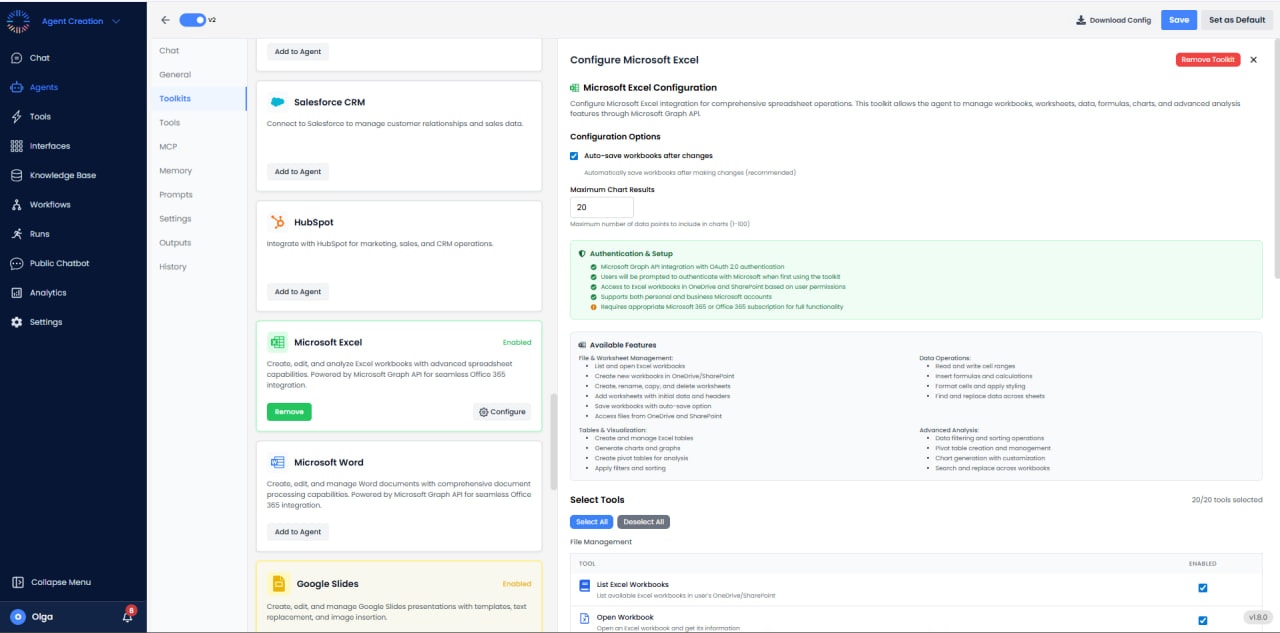
 * **Auto-save**: Enabled
* **Maximum Chart Results**: 20
* **Authentication**: OAuth 2.0
* **Data Access**: Read/Write, Tables, Charts, Formulas, Advanced Analysis
## Available Tools (20/20)
### Workbook & Worksheet Management
* **List Excel Workbooks**: View all Excel files.
* **Open Workbook**: Open an existing workbook.
* **Create Workbook**: Create a new workbook.
* **Save Workbook**: Save current workbook.
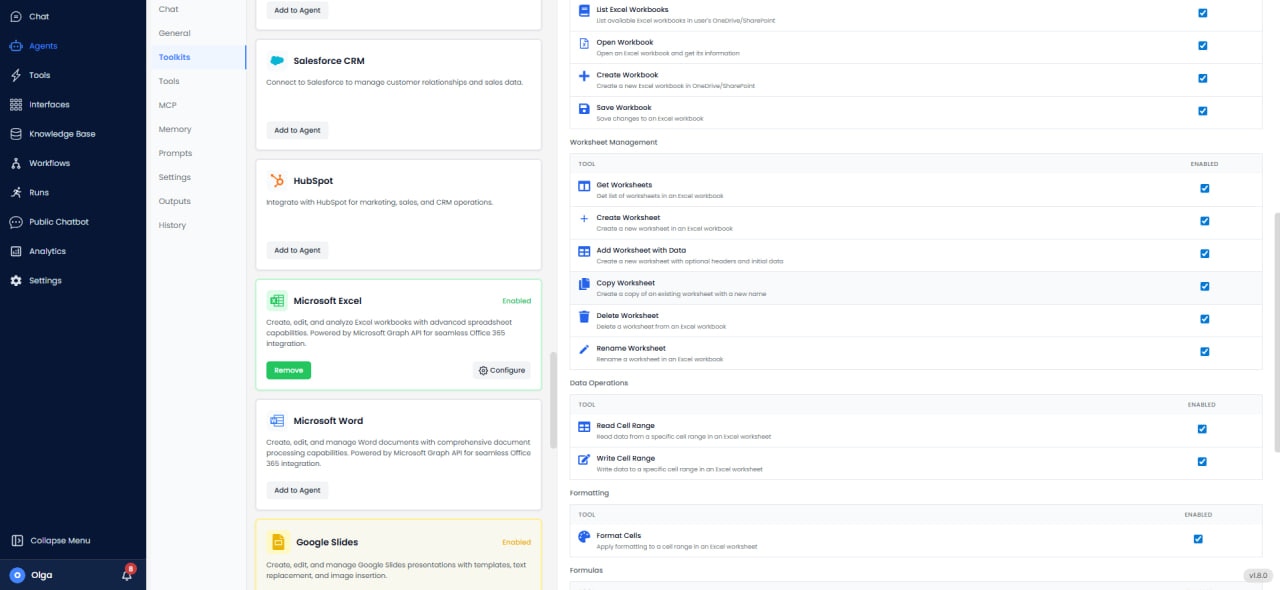
* **Get Worksheets**: List all worksheets in the workbook.
* **Create Worksheet**: Add new worksheet.
* **Add Worksheet with Data**: Create worksheet and populate with data.
* **Copy Worksheet**: Duplicate worksheet.
* **Delete Worksheet**: Remove worksheet.
* **Rename Worksheet**: Change worksheet name.
### Data Operations
* **Read Cell Range**: Get values from range.
* **Write Cell Range**: Update values in range.
* **Format Cells**: Apply formatting (font, color, borders).
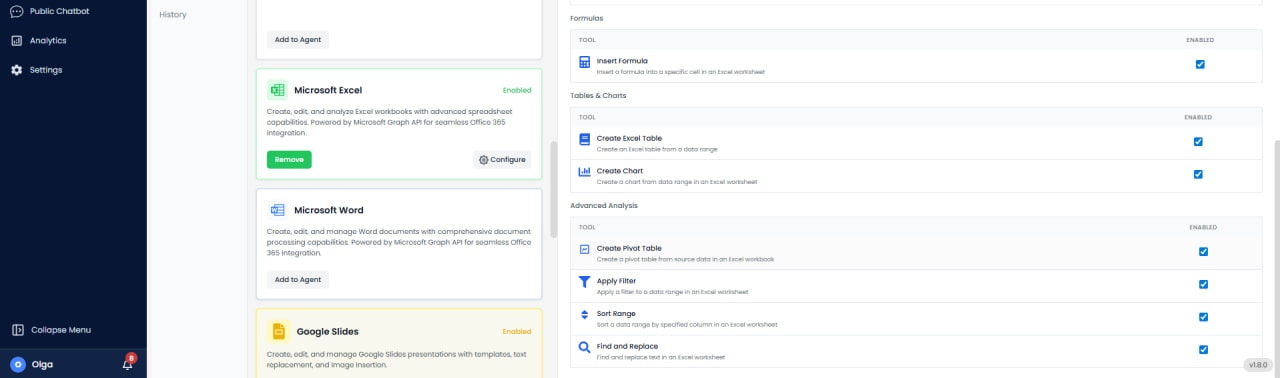
* **Insert Formula**: Add Excel formulas.
### Table & Analysis
* **Create Excel Table**: Convert range to table.
* **Create Chart**: Insert charts from data.
* **Create Pivot Table**: Generate pivot table.
* **Apply Filter**: Filter data in range.
* **Sort Range**: Sort data.
* **Find and Replace**: Search and replace values.
## Use Cases
* **Financial Modeling**: Build financial models with formulas and scenarios.
* **Data Analysis**: Process datasets with pivot tables and charts.
* **Report Automation**: Generate formatted Excel reports.
* **Sales Dashboards**: Create interactive dashboards.
* **Data Consolidation**: Merge data from multiple sources.
* **Auto-save**: Enabled
* **Maximum Chart Results**: 20
* **Authentication**: OAuth 2.0
* **Data Access**: Read/Write, Tables, Charts, Formulas, Advanced Analysis
## Available Tools (20/20)
### Workbook & Worksheet Management
* **List Excel Workbooks**: View all Excel files.
* **Open Workbook**: Open an existing workbook.
* **Create Workbook**: Create a new workbook.
* **Save Workbook**: Save current workbook.
* **Get Worksheets**: List all worksheets in the workbook.
* **Create Worksheet**: Add new worksheet.
* **Add Worksheet with Data**: Create worksheet and populate with data.
* **Copy Worksheet**: Duplicate worksheet.
* **Delete Worksheet**: Remove worksheet.
* **Rename Worksheet**: Change worksheet name.
### Data Operations
* **Read Cell Range**: Get values from range.
* **Write Cell Range**: Update values in range.
* **Format Cells**: Apply formatting (font, color, borders).
* **Insert Formula**: Add Excel formulas.
### Table & Analysis
* **Create Excel Table**: Convert range to table.
* **Create Chart**: Insert charts from data.
* **Create Pivot Table**: Generate pivot table.
* **Apply Filter**: Filter data in range.
* **Sort Range**: Sort data.
* **Find and Replace**: Search and replace values.
## Use Cases
* **Financial Modeling**: Build financial models with formulas and scenarios.
* **Data Analysis**: Process datasets with pivot tables and charts.
* **Report Automation**: Generate formatted Excel reports.
* **Sales Dashboards**: Create interactive dashboards.
* **Data Consolidation**: Merge data from multiple sources.